# Tutorials

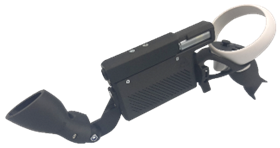
All the tutorials traditionally found on our website, pertaining to the ForceTube haptic gunstock in alphabetical order

# Companion App Guide

<div class="elementor-section elementor-element elementor-element-z7fawaf elementor-top-section elementor-section-boxed elementor-section-height-default elementor-section-height-default elementor-section-content-middle" data-element_type="section" id="bkmrk-"><div class="elementor-container  elementor-column-gap-no      "><div class="elementor-row  "><div class="elementor-column elementor-element elementor-element-62chnec elementor-col-100 elementor-top-column" data-element_type="column"><div class="elementor-column-wrap elementor-element-populated"><div class="elementor-widget-wrap"><div class="elementor-widget elementor-element elementor-element-5y0ncvm elementor-widget-heading" data-element_type="heading"><div class="elementor-widget-container">  
</div></div><div class="elementor-widget elementor-element elementor-element-drfxd66 elementor-widget-image" data-element_type="image"><div class="elementor-widget-container">  
</div></div></div></div></div></div></div></div><div class="elementor-section elementor-element elementor-element-msqw3aq elementor-top-section elementor-section-boxed elementor-section-height-default elementor-section-height-default elementor-reverse-mobile" data-element_type="section" id="bkmrk--1"><div class="elementor-container  elementor-column-gap-no      "><div class="elementor-row  "><div class="elementor-column elementor-element elementor-element-b5qpy4g elementor-col-33 elementor-top-column elementor-md-40" data-element_type="column"><div class="elementor-column-wrap elementor-element-populated"><div class="elementor-widget-wrap"><div class="elementor-widget elementor-element elementor-element-i9nsemo elementor-widget-image" data-element_type="image"><div class="elementor-widget-container"><div class="elementor-image">  
</div><div class="elementor-image"><table border="1" style="border-collapse: collapse; width: 100%; border-width: 1px; border-style: none;"><colgroup><col style="width: 50.0596%;"></col><col style="width: 50.0596%;"></col></colgroup><tbody><tr><td class="align-center" rowspan="2" style="vertical-align: top; border-style: none;">![provollver haptic pistol](https://www.protubevr.com/img/cms/Product%20Guide/Companion%20App%20EN/companion-app-product-guide-provolver.png)  
![forcetube haptic gun stock](https://www.protubevr.com/img/cms/Product%20Guide/Companion%20App%20EN/companion-app-product-guide-forcetube.png)  
</td><td style="border-style: none;">The Companion App creates a backwards compatibility for SteamVR games to have haptic with our devices, such as the ForceTube or the ProVolver.

  
We call this **SteamVR compatibility**.

##### What does it mean?

1\) This little software will detect when your avatar presses the trigger of your in-game weapon(s).

2\) It will understand what kind of weapon(s) you are using and do some wizardry (quite a lot of maths and electrical conversion, tbh).

3\) The Companion App sends a signal to your haptic device(s).

4\) The device(s) will activate, replicating the recoil and rumble of what's happening on your in-game weapon(s).

</td></tr><tr><td style="border-style: none;">##### What do i need?

You only need the Companion App **if you are using SteamVR on PC.**

If you are playing games directly on your standalone HMD (such as Meta Quest or Pico without PCVR link), our haptic devices are natively compatible with an extensive and ever growing list of VR games.

If you use a Meta HMD with PCVR, you need to changes the runtime. **More info in the FAQ below**.

</td></tr></tbody></table>

</div></div></div></div></div></div><div class="elementor-column elementor-element elementor-element-maru7fe elementor-col-66 elementor-top-column elementor-md-60" data-element_type="column"><div class="elementor-column-wrap elementor-element-populated"><div class="elementor-widget-wrap"><div class="elementor-widget elementor-element elementor-element-po73i9a elementor-widget-text-editor" data-element_type="text-editor">  
</div></div></div></div></div></div></div><table border="1" id="bkmrk-compatible-games-and" style="border-collapse: collapse; width: 100%; height: 347.95px; border-width: 1px; border-style: hidden;"><colgroup><col style="width: 50.0596%;"></col><col style="width: 50.0596%;"></col></colgroup><tbody><tr style="height: 222.8px;"><td rowspan="2" style="height: 347.95px; border-style: none;">### Compatible games and mods

Through our collaboration with VR game studios, the compatibility and calibration of our haptic devices are directly integrated into games.

This **native compatibility** does not require the use of the SteamVR compatibility feature and is present in over 60 titles across multiple platforms including PC, Quest &amp; Pico headsets. This list of native titles is growing continuously.

In addition to these titles, wonderful modders from the community are adding **mods to enable native integration** into popular games that do not. For games with such a mod, usage of the Companion App SteamVR compatibility feature is not required, just like with native titles. Those mods are only available for SteamVR games (PC).

For PCVR games that are neither native nor have a mod, you need to use the **Companion App SteamVR compatibility** feature.

For PCVR games that are native, you can use the Companion App to finetune your experience.

Check [**<span style="color: #ff6600;"><span style="text-decoration: underline;">the native compatiblilities page</span></span>**](https://help.protubevr.com/books/forcetube-haptic-gunstock/page/haptic-compatibility-and-vr-games) for more details.

</td><td style="height: 222.8px; border-style: none;"><div class="elementor-widget elementor-element elementor-element-aq037ke elementor-widget-banner" data-element_type="banner"><div class="elementor-widget-container"><div class="elementor-iqit-banner">[<figure class="elementor-iqit-banner-img">![reddit logo](https://www.protubevr.com/img/cms/Social%20media/protubevr-reddit-normal.png)</figure>](https://www.reddit.com/r/ProTubeVR/comments/ku0iy4/list_of_native_forcetubevr_titles/)</div></div></div>  
</td></tr><tr style="height: 125.15px;"><td style="height: 125.15px; border-style: none;"><div class="elementor-widget elementor-element elementor-element-aq037ke elementor-widget-banner" data-element_type="banner"><div class="elementor-widget-container"><div class="elementor-iqit-banner align-center">[**<span style="color: #ff6600;"><span style="text-decoration: underline;">See compatible games on Reddit</span></span>**](https://www.reddit.com/r/ProTubeVR/comments/ku0iy4/list_of_native_forcetubevr_titles/)</div></div></div></td></tr></tbody></table>

<div class="elementor-section elementor-element elementor-element-fifpmoj elementor-top-section elementor-section-boxed elementor-section-height-default elementor-section-height-default" data-element_type="section" id="bkmrk--2"><div class="elementor-container  elementor-column-gap-no      "><div class="elementor-row  "><div class="elementor-column elementor-element elementor-element-cvcup5e elementor-col-33 elementor-top-column" data-element_type="column"><div class="elementor-column-wrap elementor-element-populated"><div class="elementor-widget-wrap"><div class="elementor-widget elementor-element elementor-element-aq037ke elementor-widget-banner" data-element_type="banner"><div class="elementor-widget-container">  
</div></div><div class="elementor-widget elementor-element elementor-element-egya6gf elementor-widget-button elementor-mobile-align-justify" data-element_type="button">  
</div></div></div></div></div></div></div><div class="elementor-section elementor-element elementor-element-fifpmoj elementor-top-section elementor-section-boxed elementor-section-height-default elementor-section-height-default" data-element_type="section" id="bkmrk--3"><div class="elementor-container  elementor-column-gap-no      "><div class="elementor-row  "><div class="elementor-column elementor-element elementor-element-cvcup5e elementor-col-33 elementor-top-column" data-element_type="column"><div class="elementor-column-wrap elementor-element-populated"><div class="elementor-widget-wrap"><div class="elementor-widget elementor-element elementor-element-egya6gf elementor-widget-button elementor-mobile-align-justify" data-element_type="button"><div class="elementor-widget-container"><div class="elementor-button-wrapper">  
</div></div></div></div></div></div></div></div></div>### Install the Companion App

<table border="1" id="bkmrk-1.-go-on-the-compani" style="border-collapse: collapse; width: 100%; border-width: 1px; border-style: none; background-color: rgb(245, 245, 247);"><colgroup><col style="width: 50%;"></col><col style="width: 50%;"></col></colgroup><tbody><tr><td style="border-style: none;">[![companion app steam page](https://www.protubevr.com/img/cms/Product%20Guide/Companion%20App%20EN/companion-app-product-guide-steam-page.PNG)](https://bit.ly/PTVR-CompApp)

</td><td style="vertical-align: middle; border-style: none;">1\. Go on the <span style="color: #ff6600;">**<span style="text-decoration: underline;">[Companion App Steam page](https://bit.ly/PTVR-CompApp)</span>**</span>.

<div class="elementor-section elementor-element elementor-element-pnkk4rq elementor-top-section elementor-section-boxed elementor-section-height-default elementor-section-height-default elementor-section-content-middle" data-element_type="section" id="bkmrk--5"><div class="elementor-container  elementor-column-gap-default      "><div class="elementor-row  "><div class="elementor-column elementor-element elementor-element-nmre2ps elementor-col-100 elementor-top-column" data-element_type="column"><div class="elementor-column-wrap elementor-element-populated"><div class="elementor-widget-wrap"><div class="elementor-section elementor-element elementor-element-mq8fuhw elementor-inner-section elementor-section-boxed elementor-section-height-default elementor-section-height-default" data-element_type="section"><div class="elementor-container  elementor-column-gap-default      "><div class="elementor-row  "><div class="elementor-column elementor-element elementor-element-0klag99 elementor-col-50 elementor-inner-column" data-element_type="column"><div class="elementor-column-wrap elementor-element-populated"><div class="elementor-widget-wrap"><div class="elementor-widget elementor-element elementor-element-dzwwugv elementor-widget-image" data-element_type="image"><div class="elementor-widget-container"><div class="elementor-image">  
</div><div class="elementor-image">2. Add the Companion App to your Steam library.</div><div class="elementor-image">  
</div></div></div></div></div></div></div></div></div></div></div></div></div></div></div>3\. Install the Companion App from your Steam library, like any other game.

4\. Use the created shortcut to start the Companion App.

</td></tr></tbody></table>

<div class="elementor-section elementor-element elementor-element-pnkk4rq elementor-top-section elementor-section-boxed elementor-section-height-default elementor-section-height-default elementor-section-content-middle" data-element_type="section" id="bkmrk--4"><div class="elementor-container  elementor-column-gap-default      "><div class="elementor-row  "><div class="elementor-column elementor-element elementor-element-nmre2ps elementor-col-100 elementor-top-column" data-element_type="column"><div class="elementor-column-wrap elementor-element-populated"><div class="elementor-widget-wrap"><div class="elementor-widget elementor-element elementor-element-0lcb7sx elementor-widget-heading" data-element_type="heading">  
</div></div></div></div></div></div></div>## Companion App instruction manual

<table border="1" id="bkmrk-general-preview-voca" style="border-collapse: collapse; width: 100%; border-width: 1px; background-color: rgb(245, 245, 247); height: 267.533px;"><colgroup><col style="width: 50.0596%;"></col><col style="width: 50.0596%;"></col></colgroup><tbody><tr style="height: 91.65px;"><td colspan="2" style="border-style: none; height: 91.65px;">### General preview

</td></tr><tr style="height: 175.883px;"><td style="border-style: none; height: 175.883px;">##### Vocabulary

<div class="elementor-section elementor-element elementor-element-84h47ho elementor-top-section elementor-section-boxed elementor-section-height-default elementor-section-height-default" data-element_type="section" id="bkmrk-device%3A-the-electron"><div class="elementor-container  elementor-column-gap-default      "><div class="elementor-row  "><div class="elementor-column elementor-element elementor-element-3wsqkef elementor-col-100 elementor-top-column" data-element_type="column"><div class="elementor-column-wrap elementor-element-populated"><div class="elementor-widget-wrap"><div class="elementor-section elementor-element elementor-element-41t2z5b elementor-inner-section elementor-section-boxed elementor-section-height-default elementor-section-height-default" data-element_type="section"><div class="elementor-container  elementor-column-gap-default      "><div class="elementor-row  "><div class="elementor-column elementor-element elementor-element-tzjxt35 elementor-col-50 elementor-inner-column" data-element_type="column"><div class="elementor-column-wrap elementor-element-populated"><div class="elementor-widget-wrap"><div class="elementor-widget elementor-element elementor-element-x2voibo elementor-widget-text-editor" data-element_type="text-editor"><div class="elementor-widget-container"><div class="elementor-text-editor rte-content">- **Device**: The electronic equipment you're connecting to the application.
- **Channel**: A reserved space where you can connect your devices and isolate specific received signals.
- **ms**: Milliseconds.
- **Preset**: A configuration file that contains saved channels and device info.

</div></div></div></div></div></div></div></div></div></div></div></div></div></div></div></td><td style="border-style: none; height: 175.883px;"><div class="elementor-column elementor-element elementor-element-nh5bwoi elementor-col-50 elementor-inner-column" data-element_type="column"><div class="elementor-column-wrap elementor-element-populated"><div class="elementor-widget-wrap"><div class="elementor-widget elementor-element elementor-element-ajlevbp elementor-widget-image" data-element_type="image"><div class="elementor-widget-container"><div class="elementor-image">![companion app general preview](https://www.protubevr.com/img/cms/Product%20Guide/Companion%20App%20EN/protubevr-companion-app-EN-01-general-preview-2024-10-16.PNG)</div><div class="elementor-image">  
</div></div></div></div></div></div></td></tr></tbody></table>


<table border="1" id="bkmrk-left-side-panel-defa" style="border-collapse: collapse; width: 100%; border-width: 1px; background-color: rgb(245, 245, 247); height: 891.8px;"><colgroup><col style="width: 50.0596%;"></col><col style="width: 50.0596%;"></col></colgroup><tbody><tr style="height: 91.65px;"><td colspan="2" style="border-style: none; height: 91.65px;">### Left Side panel

</td></tr><tr style="height: 262.1px;"><td style="border-style: none; height: 262.1px;">##### Default mode

You have some tabs available by default:

- **Connected Devices**
- **SteamVR**
- **Native and Mods**
- **Haptic Demo**
- **Steam workshop**

<div class="elementor-section elementor-element elementor-element-cglvzxb elementor-top-section elementor-section-boxed elementor-section-height-default elementor-section-height-default elementor-section-content-top" data-element_type="section" id="bkmrk-connected-devices-st"><div class="elementor-container  elementor-column-gap-default      "><div class="elementor-row  "><div class="elementor-column elementor-element elementor-element-64hsijl elementor-col-100 elementor-top-column" data-element_type="column"><div class="elementor-column-wrap elementor-element-populated"><div class="elementor-widget-wrap"><div class="elementor-section elementor-element elementor-element-ir2ju9v elementor-inner-section elementor-section-boxed elementor-section-height-default elementor-section-height-default" data-element_type="section"><div class="elementor-container  elementor-column-gap-default      "><div class="elementor-row  "><div class="elementor-column elementor-element elementor-element-14jkyji elementor-col-50 elementor-inner-column" data-element_type="column"><div class="elementor-column-wrap elementor-element-populated"><div class="elementor-widget-wrap"><div class="elementor-widget elementor-element elementor-element-sntibuy elementor-widget-text-editor" data-element_type="text-editor"><div class="elementor-widget-container">  
</div></div></div></div></div></div></div></div></div></div></div></div></div></div></td><td style="border-style: none; height: 262.1px;">##### Advanced mode

Switching between modes enable/disable advanced features, like assignng custom channels to your device.

- **Connected Devices (advanced)**
- **SteamVR (advanced)**
- **Native and Mods (advanced)**
- **Haptic Demo (advanced)**
- **Valve Index**
- **Steam workshop**

<div class="elementor-section elementor-element elementor-element-cglvzxb elementor-top-section elementor-section-boxed elementor-section-height-default elementor-section-height-default elementor-section-content-top" data-element_type="section" id="bkmrk-connected-devices-%28a"><div class="elementor-container  elementor-column-gap-default      "><div class="elementor-row  "><div class="elementor-column elementor-element elementor-element-64hsijl elementor-col-100 elementor-top-column" data-element_type="column"><div class="elementor-column-wrap elementor-element-populated"><div class="elementor-widget-wrap"><div class="elementor-section elementor-element elementor-element-ir2ju9v elementor-inner-section elementor-section-boxed elementor-section-height-default elementor-section-height-default" data-element_type="section"><div class="elementor-container  elementor-column-gap-default      "><div class="elementor-row  "><div class="elementor-column elementor-element elementor-element-xll16zj elementor-col-50 elementor-inner-column" data-element_type="column"><div class="elementor-column-wrap elementor-element-populated"><div class="elementor-widget-wrap"><div class="elementor-widget elementor-element elementor-element-ohyezww elementor-widget-text-editor" data-element_type="text-editor"><div class="elementor-widget-container">  
</div></div></div></div></div></div></div></div></div></div></div></div></div></div></td></tr><tr style="height: 538.05px;"><td class="align-center" style="vertical-align: top; border-style: none; height: 538.05px;"><div class="elementor-widget elementor-element elementor-element-nohm9sq elementor-widget-image" data-element_type="image"><div class="elementor-widget-container"><div class="elementor-image">![companion app side panel default](https://www.protubevr.com/img/cms/Product%20Guide/Companion%20App%20EN/protubevr-companion-app-EN-04-left-panel-default-2024-10-16.PNG)</div></div></div>  
</td><td class="align-center" style="vertical-align: top; border-style: none; height: 538.05px;"><div class="elementor-widget elementor-element elementor-element-m2t8h76 elementor-widget-image" data-element_type="image"><div class="elementor-widget-container"><div class="elementor-image">![companion app side panel advanced](https://www.protubevr.com/img/cms/Product%20Guide/Companion%20App%20EN/protubevr-companion-app-EN-05-left-side-panel-advanced-2024-10-16.PNG)</div><div class="elementor-image">  
</div></div></div></td></tr></tbody></table>

<div class="elementor-section elementor-element elementor-element-84h47ho elementor-top-section elementor-section-boxed elementor-section-height-default elementor-section-height-default" data-element_type="section" id="bkmrk--6"><div class="elementor-container  elementor-column-gap-default      "><div class="elementor-row  "><div class="elementor-column elementor-element elementor-element-3wsqkef elementor-col-100 elementor-top-column" data-element_type="column"><div class="elementor-column-wrap elementor-element-populated"><div class="elementor-widget-wrap"><div class="elementor-section elementor-element elementor-element-41t2z5b elementor-inner-section elementor-section-boxed elementor-section-height-default elementor-section-height-default" data-element_type="section"><div class="elementor-container  elementor-column-gap-default      "><div class="elementor-row  "><div class="elementor-column elementor-element elementor-element-tzjxt35 elementor-col-50 elementor-inner-column" data-element_type="column"><div class="elementor-column-wrap elementor-element-populated"><div class="elementor-widget-wrap"><div class="elementor-widget elementor-element elementor-element-x2voibo elementor-widget-text-editor" data-element_type="text-editor">  
</div></div></div></div></div></div></div></div></div></div></div></div></div><div class="elementor-section elementor-element elementor-element-cglvzxb elementor-top-section elementor-section-boxed elementor-section-height-default elementor-section-height-default elementor-section-content-top" data-element_type="section" id="bkmrk--7"><div class="elementor-container  elementor-column-gap-default      "><div class="elementor-row  "><div class="elementor-column elementor-element elementor-element-64hsijl elementor-col-100 elementor-top-column" data-element_type="column"><div class="elementor-column-wrap elementor-element-populated"><div class="elementor-widget-wrap"><div class="elementor-section elementor-element elementor-element-ir2ju9v elementor-inner-section elementor-section-boxed elementor-section-height-default elementor-section-height-default" data-element_type="section"><div class="elementor-container  elementor-column-gap-default      "><div class="elementor-row  "><div class="elementor-column elementor-element elementor-element-14jkyji elementor-col-50 elementor-inner-column" data-element_type="column"><div class="elementor-column-wrap elementor-element-populated"><div class="elementor-widget-wrap"><div class="elementor-widget elementor-element elementor-element-sntibuy elementor-widget-text-editor" data-element_type="text-editor"><div class="elementor-widget-container">  
</div></div></div></div></div></div></div></div></div></div></div></div></div></div><div class="elementor-section elementor-element elementor-element-cglvzxb elementor-top-section elementor-section-boxed elementor-section-height-default elementor-section-height-default elementor-section-content-top" data-element_type="section" id="bkmrk--8"><div class="elementor-container  elementor-column-gap-default      "><div class="elementor-row  "><div class="elementor-column elementor-element elementor-element-64hsijl elementor-col-100 elementor-top-column" data-element_type="column"><div class="elementor-column-wrap elementor-element-populated"><div class="elementor-widget-wrap"><div class="elementor-section elementor-element elementor-element-ir2ju9v elementor-inner-section elementor-section-boxed elementor-section-height-default elementor-section-height-default" data-element_type="section"><div class="elementor-container  elementor-column-gap-default      "><div class="elementor-row  "><div class="elementor-column elementor-element elementor-element-xll16zj elementor-col-50 elementor-inner-column" data-element_type="column"><div class="elementor-column-wrap elementor-element-populated"><div class="elementor-widget-wrap"><div class="elementor-widget elementor-element elementor-element-ohyezww elementor-widget-text-editor" data-element_type="text-editor"><div class="elementor-widget-container">  
</div></div></div></div></div></div></div></div></div></div></div></div></div></div><div class="elementor-section elementor-element elementor-element-cglvzxb elementor-top-section elementor-section-boxed elementor-section-height-default elementor-section-height-default elementor-section-content-top" data-element_type="section" id="bkmrk-top-bar-widget-auto-"><div class="elementor-container  elementor-column-gap-default      "><div class="elementor-row  "><div class="elementor-column elementor-element elementor-element-64hsijl elementor-col-100 elementor-top-column" data-element_type="column"><div class="elementor-column-wrap elementor-element-populated"><div class="elementor-widget-wrap"><div class="elementor-section elementor-element elementor-element-ir2ju9v elementor-inner-section elementor-section-boxed elementor-section-height-default elementor-section-height-default" data-element_type="section"><div class="elementor-container  elementor-column-gap-default      "><div class="elementor-row  "><div class="elementor-column elementor-element elementor-element-xll16zj elementor-col-50 elementor-inner-column" data-element_type="column"><div class="elementor-column-wrap elementor-element-populated"><div class="elementor-widget-wrap"><div class="elementor-widget elementor-element elementor-element-m2t8h76 elementor-widget-image" data-element_type="image"><div class="elementor-widget-container"><div class="elementor-image"><table border="1" style="border-collapse: collapse; width: 100%; height: 709.884px;"><colgroup><col style="width: 49.9474%;"></col><col style="width: 49.9474%;"></col></colgroup><tbody><tr style="height: 92.7667px;"><td colspan="2" style="height: 92.7667px; background-color: rgb(246, 246, 246); border-style: none;">### Top bar Widget

</td></tr><tr style="height: 132.167px;"><td style="height: 132.167px; background-color: rgb(246, 246, 246); border-style: none;">##### Auto-connect

The Companion application will automatically try to connect to the devices remembered by your PC.

*Disable this option if you want only some devices to connect.*

In advanced mode, the **Stream Plugin** button appears.

</td><td class="align-center" style="height: 132.167px; vertical-align: middle; background-color: rgb(246, 246, 246); border-style: none;"><div class="elementor-column elementor-element elementor-element-olz1lih elementor-col-50 elementor-inner-column elementor-md-100" data-element_type="column"><div class="elementor-column-wrap elementor-element-populated"><div class="elementor-widget-wrap"><div class="elementor-widget elementor-element elementor-element-06v4yla elementor-widget-image" data-element_type="image"><div class="elementor-widget-container"><div class="elementor-image">![companion app top bar](https://www.protubevr.com/img/cms/Product%20Guide/Companion%20App%20EN/protubevr-companion-app-EN-02-auto-research-2024-10-16.PNG)</div></div></div></div></div></div>  
</td></tr><tr style="height: 484.95px;"><td style="height: 484.95px; background-color: rgb(246, 246, 246); border-style: none;">##### Preset Manager

When launched, the Companion App always loads on the default parameters. If you want to keep your modified settings, you must save it in a preset.

**Double-clicking** on a preset will load its settings.

**Save:** Create a new preset with the name in the black text box and saves current configs including:

<div class="elementor-section elementor-element elementor-element-lewc4ul elementor-top-section elementor-section-boxed elementor-section-height-default elementor-section-height-default elementor-section-content-top" data-element_type="section" id="bkmrk-assigned-device-chan"><div class="elementor-container  elementor-column-gap-default      "><div class="elementor-row  "><div class="elementor-column elementor-element elementor-element-ctnvc06 elementor-col-100 elementor-top-column" data-element_type="column"><div class="elementor-column-wrap elementor-element-populated"><div class="elementor-widget-wrap"><div class="elementor-section elementor-element elementor-element-deid34t elementor-inner-section elementor-section-boxed elementor-section-height-default elementor-section-height-default elementor-section-content-middle" data-element_type="section"><div class="elementor-container  elementor-column-gap-default      "><div class="elementor-row  "><div class="elementor-column elementor-element elementor-element-q8tyye3 elementor-col-50 elementor-inner-column" data-element_type="column"><div class="elementor-column-wrap elementor-element-populated"><div class="elementor-widget-wrap"><div class="elementor-widget elementor-element elementor-element-1e6j326 elementor-widget-text-editor" data-element_type="text-editor"><div class="elementor-widget-container"><div class="elementor-text-editor rte-content">- Assigned device channels.
- SteamVR settings.
- Native Compatibility Settings.
- Knuckles Fix values.

</div></div></div></div></div></div></div></div></div></div></div></div></div></div></div>Saving a setting to an existing preset overwrites it.

If you want the retrieve the default preset, close the Companion App, reopen it, and save the parameters loaded by default in a new preset.

**Import**: Import a configuration file. You can find shared presets from our Discord community.

**Export**: Export all saved configurations as a file. You can share it with our Discord community.

**Delete**: Delete the selected preset.

</td><td class="align-center" style="height: 484.95px; vertical-align: middle; background-color: rgb(246, 246, 246); border-style: none;">![companion app preset](https://www.protubevr.com/img/cms/Product%20Guide/Companion%20App%20EN/protubevr-companion-app-EN-3-preset-manager.PNG)</td></tr></tbody></table>

</div></div></div></div></div></div></div></div></div></div></div></div></div></div></div><div class="elementor-section elementor-element elementor-element-lewc4ul elementor-top-section elementor-section-boxed elementor-section-height-default elementor-section-height-default elementor-section-content-top" data-element_type="section" id="bkmrk-connected-devices-an"><div class="elementor-container  elementor-column-gap-default      "><div class="elementor-row  "><div class="elementor-column elementor-element elementor-element-ctnvc06 elementor-col-100 elementor-top-column" data-element_type="column"><div class="elementor-column-wrap elementor-element-populated"><div class="elementor-widget-wrap"><div class="elementor-section elementor-element elementor-element-deid34t elementor-inner-section elementor-section-boxed elementor-section-height-default elementor-section-height-default elementor-section-content-middle" data-element_type="section"><div class="elementor-container  elementor-column-gap-default      "><div class="elementor-row  "><div class="elementor-column elementor-element elementor-element-q8tyye3 elementor-col-50 elementor-inner-column" data-element_type="column"><div class="elementor-column-wrap elementor-element-populated"><div class="elementor-widget-wrap"><div class="elementor-widget elementor-element elementor-element-3lq5ai9 elementor-widget-heading" data-element_type="heading"><div class="elementor-widget-container"><table border="1" style="border-collapse: collapse; width: 100%; height: 1148.58px;"><colgroup><col style="width: 49.9474%;"></col><col style="width: 49.9474%;"></col></colgroup><tbody><tr style="height: 92.7667px;"><td colspan="2" style="height: 92.7667px; background-color: rgb(245, 245, 247); border-style: none;">### Connected devices and Channels

</td></tr><tr style="height: 184.8px;"><td colspan="2" style="height: 184.8px; background-color: rgb(245, 245, 247); border-style: none;"><div class="elementor-section elementor-element elementor-element-at3o37s elementor-inner-section elementor-section-boxed elementor-section-height-default elementor-section-height-default elementor-section-content-top" data-element_type="section"><div class="elementor-container  elementor-column-gap-default      "><div class="elementor-row  "><div class="elementor-column elementor-element elementor-element-5ctsgef elementor-col-100 elementor-inner-column" data-element_type="column"><div class="elementor-column-wrap elementor-element-populated"><div class="elementor-widget-wrap"><div class="elementor-widget elementor-element elementor-element-3abo97u elementor-widget-accordion" data-element_type="accordion"><div class="elementor-widget-container"><div class="elementor-accordion" data-active-first="0"><div class="elementor-accordion-item">  
</div></div></div></div></div></div></div></div></div></div><details><summary>What are channels?</summary>

To operate, the Companion App catches in-game controllers' vibration signals, converts them and sends them to your devices, making them kick and rumble.

These signals go through Channels.

There are 6 of them. By default, the signal will go through all 6 channels and your device will react.

</details><details><summary>Why are channels important?</summary>

If you have 2 distinct haptic devices, channels allow them to kick separately.

If you'd prefer your haptic devices to kick separately, you need to set each device to a different channel.

Doing so, you would avoid the ProVolver to kicking when you use your ForceTube Rifle, for example.

Or if you have a pair of ProVolvers, and you only want to feel the recoil on the hand holding the gun that's firing it, it's possible by using the channels.

</details><details><summary>Special channels for some games</summary>

<canvas class="lt-highlighter__canvas" height="20" style="display: none; top: 45px !important; left: 531px !important;" width="234"></canvas>

A natively compatible game only sends signals to a channel if its developers have set up that specific channel.

Some developers have only set up 1 or 2 channels for their game. If you use custom Channels setup instead of the Default one for these games, you have to select the configured channel.

</details><details><summary>Automatically assigned channels</summary>

<canvas class="lt-highlighter__canvas" height="54" style="display: none; top: 45px !important; left: 251px !important;" width="425"></canvas>Connecting your new device will assign it to a **signal channel automatically in this order:**

RifleButt - RifleBolt - Pistol1 - Pistol2 - Other - Vest

If you connect more devices than the total channel number available, auto-assign will loop back to RifleButt and so on.

</details></td></tr><tr style="height: 28.8px;"><td colspan="2" style="border-style: none; height: 28.8px;"></td></tr><tr style="height: 209.45px;"><td style="height: 209.45px; background-color: rgb(245, 245, 247); border-style: none;">##### Default mode

This is the page you land on when you start the application. By default, you will see each connected device here.

You can click on any device card to change its type, and the application will remember which device is what.

</td><td style="height: 209.45px; background-color: rgb(245, 245, 247); border-style: none;">##### Advanced mode

In advanced mode, you have a Channels button appearing under each device.

Clicking on this button will bring-up a menu where you can manually assign channels to your device.

It is important for some games and/or if you have several haptic devices.

</td></tr><tr style="height: 632.767px;"><td style="height: 632.767px; background-color: rgb(245, 245, 247); border-style: none;">![companion app connected devices default](https://www.protubevr.com/img/cms/Product%20Guide/Companion%20App%20EN/protubevr-companion-app-EN-06-connected-devices-default-2024-10-16.PNG)</td><td style="height: 632.767px; background-color: rgb(245, 245, 247); border-style: none;">![companion app connected devices advanced view](https://www.protubevr.com/img/cms/Product%20Guide/Companion%20App%20EN/protubevr-companion-app-EN-07-connected-devices-advanced-view-2024-10-16.png)

![companion app connected devices advanced](https://www.protubevr.com/img/cms/Product%20Guide/Companion%20App%20EN/protubevr-companion-app-EN-7-connected-devices-advanced-setup.PNG)

</td></tr></tbody></table>

</div></div></div></div></div></div></div></div></div></div></div></div></div></div><div class="elementor-section elementor-element elementor-element-h8z9ykt elementor-top-section elementor-section-boxed elementor-section-height-default elementor-section-height-default elementor-section-content-top" data-element_type="section" id="bkmrk--12"><div class="elementor-container  elementor-column-gap-default      "><div class="elementor-row  "><div class="elementor-column elementor-element elementor-element-9sufw4m elementor-col-100 elementor-top-column" data-element_type="column"><div class="elementor-column-wrap elementor-element-populated"><div class="elementor-widget-wrap"><div class="elementor-section elementor-element elementor-element-r1yeui8 elementor-inner-section elementor-section-boxed elementor-section-height-default elementor-section-height-default elementor-section-content-top" data-element_type="section"><div class="elementor-container  elementor-column-gap-default      "><div class="elementor-row  "><div class="elementor-column elementor-element elementor-element-pc9cjx1 elementor-col-50 elementor-inner-column" data-element_type="column"><div class="elementor-column-wrap elementor-element-populated"><div class="elementor-widget-wrap">  
</div></div></div></div></div></div></div></div></div></div></div></div><div class="elementor-section elementor-element elementor-element-xq3fbji elementor-top-section elementor-section-boxed elementor-section-height-default elementor-section-height-default elementor-section-content-top" data-element_type="section" id="bkmrk--15"><div class="elementor-container  elementor-column-gap-default      "><div class="elementor-row  "><div class="elementor-column elementor-element elementor-element-67z2ucu elementor-col-100 elementor-top-column" data-element_type="column"><div class="elementor-column-wrap elementor-element-populated"><div class="elementor-widget-wrap"><div class="elementor-widget elementor-element elementor-element-jstevbf elementor-widget-heading" data-element_type="heading"><div class="elementor-widget-container"><table border="1" style="border-collapse: collapse; width: 100%; height: 439.65px;"><colgroup><col style="width: 49.9474%;"></col><col style="width: 49.9474%;"></col></colgroup><tbody><tr style="height: 92.7667px;"><td colspan="2" style="height: 92.7667px; background-color: rgb(245, 245, 247); border-style: none;">### SteamVR

</td></tr><tr style="height: 63.5167px;"><td colspan="2" style="height: 63.5167px; background-color: rgb(245, 245, 247); border-style: none;">Customize the SteamVR Compatibility Feature.

If you use a Meta HMD with PCVR, you need to change the runtime. **Every step in the FAQ**.

</td></tr><tr style="height: 283.367px;"><td style="height: 283.367px; background-color: rgb(245, 245, 247); border-style: none;">##### Default mode

**Listen Events**: Whether you want your channel to react when your left/right hand triggers an haptic event.

**Kick Power**: Controls the kick power of your devices.

**Kick Threshold**: Adjust this variable to control required power for SteamVR events to trigger you device kick response. Each game has different values defined by the developers, you will have to do some testing to get a good result.

**Rumble Threshold**: Adjust this variable to control required power for SteamVR to trigger your device rumbe response.

![companion app steamvr compatibility](https://www.protubevr.com/img/cms/Product%20Guide/Companion%20App%20EN/protubevr-companion-app-EN-8-steamvr-default.PNG)

</td><td style="height: 283.367px; background-color: rgb(245, 245, 247); border-style: none;">##### Advanced mode

Start by selecting a channel and tweak your settings from here.

Make sure your device is in the right channel by checking in your channel manager. You can also use the "Identifier" command below.

**Identifier:** Sends a kick command to the selected channel.

*Tips: If identifying a channel does not result in any connected device kicking, it probably means that no device has that current channel assigned. A device is considered connected if its battery displays a percentage superior to 0.*

*![companion app steamvr advanced](https://www.protubevr.com/img/cms/Product%20Guide/Companion%20App%20EN/protubevr-companion-app-EN-9-steamvr-advanced.PNG)*
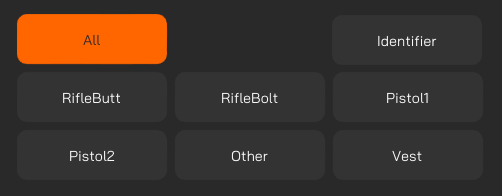
**Interpret as kick / Interpret as rumble**: If you want your right or left controller events being interpreted as a kick, rumble or both.

**Shots Dela**y: Limits the reaction rate of your devices. *Avoids triggering event bursts on each in-game interaction.*

**Minimum Rumble Duration**: Controls the duration between each vibration.

![companion app steamvr advanced all channel settings](https://www.protubevr.com/img/cms/Product%20Guide/Companion%20App%20EN/protubevr-companion-app-EN-10-steamvr-advanted-allchannels.PNG)

</td></tr></tbody></table>

</div></div></div></div></div></div></div></div><table border="1" id="bkmrk-haptic-demo-default-" style="border-collapse: collapse; width: 100%;"><colgroup><col style="width: 49.9474%;"></col><col style="width: 49.9474%;"></col></colgroup><tbody><tr><td colspan="2" style="background-color: rgb(245, 245, 247); border-style: none;">### Haptic demo

</td></tr><tr><td style="background-color: rgb(245, 245, 247); border-style: none;">### Default mode

Mainly used to simulate different types of weapons.

<div class="elementor-section elementor-element elementor-element-zgkxg0e elementor-top-section elementor-section-boxed elementor-section-height-default elementor-section-height-default elementor-section-content-top" data-element_type="section"><div class="elementor-container  elementor-column-gap-default      "><div class="elementor-row  "><div class="elementor-column elementor-element elementor-element-0rucp1s elementor-col-100 elementor-top-column" data-element_type="column"><div class="elementor-column-wrap elementor-element-populated"><div class="elementor-widget-wrap"><div class="elementor-section elementor-element elementor-element-2mdi811 elementor-inner-section elementor-section-boxed elementor-section-height-default elementor-section-height-default elementor-section-content-top" data-element_type="section"><div class="elementor-container  elementor-column-gap-default      "><div class="elementor-row  "><div class="elementor-column elementor-element elementor-element-0678qkk elementor-col-50 elementor-inner-column" data-element_type="column"><div class="elementor-column-wrap elementor-element-populated"><div class="elementor-widget-wrap"><div class="elementor-widget elementor-element elementor-element-c3dv3vw elementor-widget-text-editor" data-element_type="text-editor"><div class="elementor-widget-container"><div class="elementor-text-editor rte-content">- Sniper : Kick with vibration.
- M16: Launches a salvo of 3 consecutive kicks.
- PKM: Continuous burst of kicks and rapid vibration.
- P90: Continuous burst of rapid kicks.
- Laser: Vibrates to charge the shots, then kicks after charging.

</div></div></div></div></div></div></div></div></div></div></div></div></div></div></div>![companion app haptic demo default](https://www.protubevr.com/img/cms/Product%20Guide/Companion%20App%20EN/protubevr-companion-app-EN-11-haptic-demo-default.PNG)

</td><td style="background-color: rgb(245, 245, 247); border-style: none;">##### Advanced mode

Start by selecting a channel and tweak your settings from here.

Make sure your device is in the right channel by checking in your channel manager.

**Identifier:** Sends a kick command to the selected channel.

*Tips: If identifying a channel does not result in any connected device kicking, it probably means that no device has that current channel assigned. A device is considered connected if its battery displays a percentage superior to 0.*

*![companion app haptic demo advanced](https://www.protubevr.com/img/cms/Product%20Guide/Companion%20App%20EN/protubevr-companion-app-EN-12-haptic-demo-advanced.PNG)*

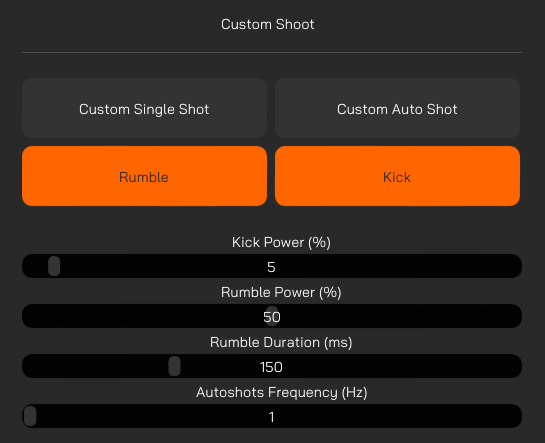
**Custom Single Shot**: Shoots once using specified parameters in brlow sliders.

**Custom Auto Shot**: Shoots using specified parameters and loops based on frequency slider.

**Kick Power**: Controls the kick power for demo mode.

**Rumble Power**: Controls the rumble power for demo mode.

**Rumble duration**: Controls the rumble duration on each shot. Max is 500 ms.

**Autoshots Frequency**: How many times per second you want to shoot with Custom Auto Shot for the demo mode.
![companion app haptic demo custom shoot](https://www.protubevr.com/img/cms/Product%20Guide/Companion%20App%20EN/protubevr-companion-app-EN-12-haptic-demo-advanced-customshoot.PNG)

</td></tr></tbody></table>

<div class="elementor-section elementor-element elementor-element-zgkxg0e elementor-top-section elementor-section-boxed elementor-section-height-default elementor-section-height-default elementor-section-content-top" data-element_type="section" id="bkmrk-sniper-%3A-kick-with-v"><div class="elementor-container  elementor-column-gap-default      "><div class="elementor-row  "><div class="elementor-column elementor-element elementor-element-0rucp1s elementor-col-100 elementor-top-column" data-element_type="column"><div class="elementor-column-wrap elementor-element-populated"><div class="elementor-widget-wrap"><div class="elementor-section elementor-element elementor-element-2mdi811 elementor-inner-section elementor-section-boxed elementor-section-height-default elementor-section-height-default elementor-section-content-top" data-element_type="section"><div class="elementor-container  elementor-column-gap-default      "><div class="elementor-row  "><div class="elementor-column elementor-element elementor-element-0a4l4zk elementor-col-50 elementor-inner-column" data-element_type="column"><div class="elementor-column-wrap elementor-element-populated"><div class="elementor-widget-wrap">  
</div></div></div></div></div></div></div></div></div></div></div></div><div class="elementor-section elementor-element elementor-element-zgkxg0e elementor-top-section elementor-section-boxed elementor-section-height-default elementor-section-height-default elementor-section-content-top" data-element_type="section" id="bkmrk--23"><div class="elementor-container  elementor-column-gap-default      "><div class="elementor-row  "><div class="elementor-column elementor-element elementor-element-0rucp1s elementor-col-100 elementor-top-column" data-element_type="column"><div class="elementor-column-wrap elementor-element-populated"><div class="elementor-widget-wrap"><div class="elementor-section elementor-element elementor-element-2mdi811 elementor-inner-section elementor-section-boxed elementor-section-height-default elementor-section-height-default elementor-section-content-top" data-element_type="section"><div class="elementor-container  elementor-column-gap-default      "><div class="elementor-row  "><div class="elementor-column elementor-element elementor-element-0a4l4zk elementor-col-50 elementor-inner-column" data-element_type="column"><div class="elementor-column-wrap elementor-element-populated"><div class="elementor-widget-wrap"><div class="elementor-widget elementor-element elementor-element-ggiuu3r elementor-widget-image" data-element_type="image">  
</div></div></div></div></div></div></div></div></div></div></div></div></div><div class="elementor-section elementor-element elementor-element-zlrfgc2 elementor-top-section elementor-section-boxed elementor-section-height-default elementor-section-height-default elementor-section-content-top" data-element_type="section" id="bkmrk--9"><div class="elementor-container  elementor-column-gap-default      "><div class="elementor-row  "><div class="elementor-column elementor-element elementor-element-w72kxl6 elementor-col-100 elementor-top-column" data-element_type="column"><div class="elementor-column-wrap elementor-element-populated"><div class="elementor-widget-wrap"><div class="elementor-widget elementor-element elementor-element-3nlfk1n elementor-widget-menu-anchor" data-element_type="menu-anchor"><div class="elementor-widget-container"><div class="elementor-menu-anchor" id="bkmrk--25"></div></div></div><div class="elementor-widget elementor-element elementor-element-6qdm20a elementor-widget-heading" data-element_type="heading"><div class="elementor-widget-container">  
</div></div></div></div></div></div></div></div><div class="elementor-section elementor-element elementor-element-zlrfgc2 elementor-top-section elementor-section-boxed elementor-section-height-default elementor-section-height-default elementor-section-content-top" data-element_type="section" id="bkmrk--24"><div class="elementor-container  elementor-column-gap-default      "><div class="elementor-row  "><div class="elementor-column elementor-element elementor-element-w72kxl6 elementor-col-100 elementor-top-column" data-element_type="column"><div class="elementor-column-wrap elementor-element-populated"><div class="elementor-widget-wrap"><div class="elementor-widget elementor-element elementor-element-6qdm20a elementor-widget-heading" data-element_type="heading"><div class="elementor-widget-container"><table border="1" style="border-collapse: collapse; width: 100%; height: 1452.72px;"><colgroup><col style="width: 49.9474%;"></col><col style="width: 49.9474%;"></col></colgroup><tbody><tr style="height: 91.65px;"><td colspan="2" style="background-color: rgb(245, 245, 247); border-style: none; height: 91.65px;">### Native and Mods

</td></tr><tr style="height: 96px;"><td colspan="2" style="background-color: rgb(245, 245, 247); border-style: none; height: 96px;">On PCVR, if you are playing a native game or a game with integration enable by a mod, you can customize your inputs.

These games do not need the Companion application to work, but it will allow you to finetune some settings if you have the need to.

Make sure to connect any desired device to the app first, and then start your game.

</td></tr><tr style="height: 618.167px;"><td style="background-color: rgb(245, 245, 247); border-style: none; height: 618.167px;">##### Default mode

By default, your device will listen to all channels at once ensuring most of the compatibility.

For each of the below parameters, refer to this chart:

<div class="elementor-section elementor-element elementor-element-zlrfgc2 elementor-top-section elementor-section-boxed elementor-section-height-default elementor-section-height-default elementor-section-content-top" data-element_type="section" id="bkmrk-0%25-%3A-no-power-100%25-%3A"><div class="elementor-container  elementor-column-gap-default      "><div class="elementor-row  "><div class="elementor-column elementor-element elementor-element-w72kxl6 elementor-col-100 elementor-top-column" data-element_type="column"><div class="elementor-column-wrap elementor-element-populated"><div class="elementor-widget-wrap"><div class="elementor-section elementor-element elementor-element-tcbmkt2 elementor-inner-section elementor-section-boxed elementor-section-height-default elementor-section-height-default elementor-section-content-top" data-element_type="section"><div class="elementor-container  elementor-column-gap-default      "><div class="elementor-row  "><div class="elementor-column elementor-element elementor-element-3yo2xe0 elementor-col-50 elementor-inner-column" data-element_type="column"><div class="elementor-column-wrap elementor-element-populated"><div class="elementor-widget-wrap"><div class="elementor-widget elementor-element elementor-element-3fov5tk elementor-widget-text-editor" data-element_type="text-editor"><div class="elementor-widget-container"><div class="elementor-text-editor rte-content">- 0% : No power
- 100% : Original game power
- 200% : Double original power

</div></div></div></div></div></div></div></div></div></div></div></div></div></div></div>**Kick Power**: Controls the kick power percentage.

**Rumble Power**: Controls the rumble power percentage.

**Rumble duration**: Controls the rumble duration percentage for each shot.

![companion app native mods default](https://www.protubevr.com/img/cms/Product%20Guide/Companion%20App%20EN/protubevr-companion-app-EN-13-native-and-mods-default.PNG)

</td><td style="background-color: rgb(245, 245, 247); border-style: none; height: 618.167px;">##### Advanced mode

Start by selecting a channel and tweak your settings from here. This allow your devices to kick separately.

Make sure your device is in the right channel by checking in your channel manager.

**Identifier:** Sends a kick command to the selected channel.

*Tips: If identifying a channel does not result in any connected device kicking, it probably means that no device has that current channel assigned. A device is considered connected if its battery displays a percentage superior to 0.*

*![companion app native mods advanced](https://www.protubevr.com/img/cms/Product%20Guide/Companion%20App%20EN/protubevr-companion-app-EN-14-native-and-mods-advanced.PNG)*

*![companion app native mods advanced all channel settings](https://www.protubevr.com/img/cms/Product%20Guide/Companion%20App%20EN/protubevr-companion-app-EN-14-native-and-mods-advanced-allchannels.PNG)*

</td></tr><tr style="height: 237.45px;"><td colspan="2" style="background-color: rgb(245, 245, 247); border-style: none; height: 237.45px;">##### Special Channel Settings

Your devices need to use the correct channels set by the developers for customization to take effect.

For the following games, make sure your Haptic devices are set in the right channels when enabling Native Customization.

If a game on this list doesn't work, search and enable ForceTube settings in your game menu.

If your native or mod-compatible game doesn't appear on this list, you will have to find the used channels via trial and error.

Any game that is not native or mod-compatible will work with **SteamVR compatibility**.

</td></tr><tr style="height: 409.45px;"><td style="background-color: rgb(245, 245, 247); border-style: none; height: 409.45px;"><table border="1" style="border-collapse: collapse; width: 100.195%; height: 293.417px;"><colgroup><col style="width: 77.0125%;"></col><col style="width: 22.9293%;"></col></colgroup><tbody><tr style="height: 29.9167px;"><td style="width: 400px; height: 29.9167px; border-style: none;">**Dead Second**</td><td style="height: 29.9167px; border-style: none;">Pistol1</td></tr><tr style="height: 29.9167px;"><td style="height: 29.9167px; border-style: none;">**Surv1v3**</td><td style="height: 29.9167px; border-style: none;">Pistol1</td></tr><tr style="height: 46.7167px;"><td style="height: 46.7167px; border-style: none;">**Cactus cowboy Plants at War**

</td><td style="height: 46.7167px; border-style: none;">RifleButt  
RifleBolt

</td></tr><tr style="height: 46.7167px;"><td style="height: 46.7167px; border-style: none;">**Cactus cowboy 3 Fully loaded**</td><td style="height: 46.7167px; border-style: none;">RifleButt  
RifleBolt</td></tr><tr style="height: 46.7167px;"><td style="height: 46.7167px; border-style: none;">**Hotdogs Horseshoes and Handgrenades**</td><td style="height: 46.7167px; border-style: none;">RifleButt  
RifleBolt</td></tr><tr style="height: 46.7167px;"><td style="height: 46.7167px; border-style: none;">**Larcenauts**</td><td style="height: 46.7167px; border-style: none;">Pistol1  
Pistol2</td></tr><tr style="height: 46.7167px;"><td style="height: 46.7167px; border-style: none;">**Resist**  
(enable parameter in game settings)</td><td style="height: 46.7167px; border-style: none;">Pistol1  
Pistol2

</td></tr></tbody></table>

</td><td style="background-color: rgb(245, 245, 247); border-style: none; height: 409.45px;"><table border="1" style="border-collapse: collapse; width: 100.199%; height: 386.4px;"><colgroup><col style="width: 50.0997%;"></col><col style="width: 50.0997%;"></col></colgroup><tbody><tr style="height: 45.6px;"><td style="width: 400px; border-style: none; height: 45.6px;">**Onward**</td><td style="border-style: none; height: 45.6px;">RifleButt  
RifleBolt</td></tr><tr style="height: 45.6px;"><td style="border-style: none; height: 45.6px;">**Contractors**</td><td style="border-style: none; height: 45.6px;">RifleButt  
RifleBolt</td></tr><tr style="height: 45.6px;"><td style="border-style: none; height: 45.6px;">**Tales of Glory 2: Retalation**  
</td><td style="border-style: none; height: 45.6px;">RifleButt  
RifleBolt

</td></tr><tr style="height: 45.6px;"><td style="border-style: none; height: 45.6px;">**Vertigo 2  
</td><td style="border-style: none; height: 45.6px;">RifleButt  
RifleBolt

</td></tr><tr style="height: 45.6px;"><td style="border-style: none; height: 45.6px;">**Gun club VR**</td><td style="border-style: none; height: 45.6px;">RifleButt  
RifleBolt</td></tr><tr style="height: 62.4px;"><td style="border-style: none; height: 62.4px;">**Warchasm**  
(no Companion App customization available)

</td><td style="border-style: none; height: 62.4px;">Akimbo out of the box

</td></tr><tr style="height: 96px;"><td style="border-style: none; height: 96px;">**Gambit !**  
(Pistol only, right hand only. Start the Companion app after the game connects to the devices)</td><td style="border-style: none; height: 96px;">Pistol2</td></tr></tbody></table>

</td></tr></tbody></table>

</div></div></div></div></div></div></div></div><div class="elementor-section elementor-element elementor-element-zlrfgc2 elementor-top-section elementor-section-boxed elementor-section-height-default elementor-section-height-default elementor-section-content-top" data-element_type="section" id="bkmrk--26"><div class="elementor-container  elementor-column-gap-default      "><div class="elementor-row  "><div class="elementor-column elementor-element elementor-element-w72kxl6 elementor-col-100 elementor-top-column" data-element_type="column"><div class="elementor-column-wrap elementor-element-populated"><div class="elementor-widget-wrap"><div class="elementor-section elementor-element elementor-element-tcbmkt2 elementor-inner-section elementor-section-boxed elementor-section-height-default elementor-section-height-default elementor-section-content-top" data-element_type="section"><div class="elementor-container  elementor-column-gap-default      "><div class="elementor-row  "><div class="elementor-column elementor-element elementor-element-3yo2xe0 elementor-col-50 elementor-inner-column" data-element_type="column"><div class="elementor-column-wrap elementor-element-populated"><div class="elementor-widget-wrap"><div class="elementor-widget elementor-element elementor-element-3fov5tk elementor-widget-text-editor" data-element_type="text-editor">  
</div></div></div></div></div></div></div></div></div></div></div></div></div><div class="elementor-section elementor-element elementor-element-s31t6sr elementor-top-section elementor-section-boxed elementor-section-height-default elementor-section-height-default elementor-section-content-top" data-element_type="section" id="bkmrk--28"><div class="elementor-container  elementor-column-gap-default      "><div class="elementor-row  "><div class="elementor-column elementor-element elementor-element-a7mq3d9 elementor-col-100 elementor-top-column" data-element_type="column"><div class="elementor-column-wrap elementor-element-populated"><div class="elementor-widget-wrap"><div class="elementor-widget elementor-element elementor-element-0joj2gs elementor-widget-heading" data-element_type="heading"><div class="elementor-widget-container"><table border="1" style="border-collapse: collapse; width: 100%; height: 617.384px;"><colgroup><col style="width: 49.9474%;"></col><col style="width: 49.9474%;"></col></colgroup><tbody><tr style="height: 92.7667px;"><td colspan="2" style="height: 92.7667px; background-color: rgb(245, 245, 247); border-style: none;">### Valve Index with Knuckles

</td></tr><tr style="height: 125.117px;"><td colspan="2" style="height: 125.117px; background-color: rgb(245, 245, 247); border-style: none;">A few players using a Valve Index HMD and its Knuckles have reported us their in-game hands fly away while shooting in long burst.

We have developed a driver to fix this.

The driver does not work with other headsets; only Valve Index might need it. If you don't own a Valve Index headset or your in-game hands don't fly away while using the Knuckles controllers with your Index HMD, you can skip this section.

</td></tr><tr style="height: 277.7px;"><td style="height: 277.7px; background-color: rgb(245, 245, 247); border-style: none;">##### Install the driver

<div class="elementor-section elementor-element elementor-element-s31t6sr elementor-top-section elementor-section-boxed elementor-section-height-default elementor-section-height-default elementor-section-content-top" data-element_type="section" id="bkmrk-close-the-companion-"><div class="elementor-container  elementor-column-gap-default      "><div class="elementor-row  "><div class="elementor-column elementor-element elementor-element-a7mq3d9 elementor-col-100 elementor-top-column" data-element_type="column"><div class="elementor-column-wrap elementor-element-populated"><div class="elementor-widget-wrap"><div class="elementor-section elementor-element elementor-element-wwz2a8a elementor-inner-section elementor-section-boxed elementor-section-height-default elementor-section-height-default elementor-section-content-top" data-element_type="section"><div class="elementor-container  elementor-column-gap-default      "><div class="elementor-row  "><div class="elementor-column elementor-element elementor-element-f27p314 elementor-col-50 elementor-inner-column" data-element_type="column"><div class="elementor-column-wrap elementor-element-populated"><div class="elementor-widget-wrap"><div class="elementor-widget elementor-element elementor-element-dt101tz elementor-widget-text-editor" data-element_type="text-editor"><div class="elementor-widget-container"><div class="elementor-text-editor rte-content">1. Close the Companion-App and shut down VR if it's been turned on.
2. Go to your Companion App installation folder.
3. Open the folder "Valve-Index-Knuckles-driver".
4. Install the driver.
5. Restart the Companion App.
6. Enable Advanced mode.
7. Go to Valve Index tab.
8. Enable the feature with the toggle button and tweak the sliders to your preferences.

</div></div></div></div></div></div></div></div></div></div></div></div></div></div></div></td><td style="height: 277.7px; background-color: rgb(245, 245, 247); border-style: none;">##### Finetune your Knuckles settings

Additional help :

<div class="elementor-section elementor-element elementor-element-s31t6sr elementor-top-section elementor-section-boxed elementor-section-height-default elementor-section-height-default elementor-section-content-top" data-element_type="section"><div class="elementor-container  elementor-column-gap-default      "><div class="elementor-row  "><div class="elementor-column elementor-element elementor-element-a7mq3d9 elementor-col-100 elementor-top-column" data-element_type="column"><div class="elementor-column-wrap elementor-element-populated"><div class="elementor-widget-wrap"><div class="elementor-section elementor-element elementor-element-wwz2a8a elementor-inner-section elementor-section-boxed elementor-section-height-default elementor-section-height-default elementor-section-content-top" data-element_type="section"><div class="elementor-container  elementor-column-gap-default      "><div class="elementor-row  "><div class="elementor-column elementor-element elementor-element-u2p5dxq elementor-col-50 elementor-inner-column" data-element_type="column"><div class="elementor-column-wrap elementor-element-populated"><div class="elementor-widget-wrap"><div class="elementor-widget elementor-element elementor-element-5fsdzt5 elementor-widget-text-editor" data-element_type="text-editor"><div class="elementor-widget-container"><div class="elementor-text-editor rte-content">1. Try to reduce the kick power produced by the mode you're currently using (either SteamVR or Native/Mods).
2. Extend the Shots delay.
3. Reduce the rumble duration.
4. Don't forget to save your configuration.

</div></div></div></div></div></div></div></div></div></div></div></div></div></div></div>**Accelero Max**: Limits max acceleration of your in-game hand.

**Freeze Duration**: How much time your hand gets frozen after a kick if it hits max acceleration.

</td></tr><tr style="height: 121.8px;"><td style="height: 121.8px; background-color: rgb(245, 245, 247); border-style: none;">##### Uninstall the driver

<div class="elementor-section elementor-element elementor-element-s31t6sr elementor-top-section elementor-section-boxed elementor-section-height-default elementor-section-height-default elementor-section-content-top" data-element_type="section" id="bkmrk-go-to-the-folder-%22c%3A"><div class="elementor-container  elementor-column-gap-default      "><div class="elementor-row  "><div class="elementor-column elementor-element elementor-element-a7mq3d9 elementor-col-100 elementor-top-column" data-element_type="column"><div class="elementor-column-wrap elementor-element-populated"><div class="elementor-widget-wrap"><div class="elementor-section elementor-element elementor-element-wwz2a8a elementor-inner-section elementor-section-boxed elementor-section-height-default elementor-section-height-default elementor-section-content-top" data-element_type="section"><div class="elementor-container  elementor-column-gap-default      "><div class="elementor-row  "><div class="elementor-column elementor-element elementor-element-f27p314 elementor-col-50 elementor-inner-column" data-element_type="column"><div class="elementor-column-wrap elementor-element-populated"><div class="elementor-widget-wrap"><div class="elementor-widget elementor-element elementor-element-mqfcdum elementor-widget-text-editor" data-element_type="text-editor"><div class="elementor-widget-container"><div class="elementor-text-editor rte-content">1. Go to the folder "C:\\ Program Files (x86)\\ Steam\\ steamapps\\ common\\ SteamVR\\ drivers".
2. Delete the folder "!ProtubeDriver1”.

</div></div></div></div></div></div></div></div></div></div></div></div></div></div></div></td><td style="height: 121.8px; background-color: rgb(245, 245, 247); border-style: none;">![companion app valve index knuckles fix settings](https://www.protubevr.com/img/cms/Product%20Guide/Companion%20App%20EN/protubevr-companion-app-EN-15-valve-index.PNG)

</td></tr></tbody></table>

</div></div></div></div></div></div></div></div><div class="elementor-section elementor-element elementor-element-s31t6sr elementor-top-section elementor-section-boxed elementor-section-height-default elementor-section-height-default elementor-section-content-top" data-element_type="section" id="bkmrk--10"><div class="elementor-container  elementor-column-gap-default      "><div class="elementor-row  "><div class="elementor-column elementor-element elementor-element-a7mq3d9 elementor-col-100 elementor-top-column" data-element_type="column"><div class="elementor-column-wrap elementor-element-populated"><div class="elementor-widget-wrap"><div class="elementor-section elementor-element elementor-element-wwz2a8a elementor-inner-section elementor-section-boxed elementor-section-height-default elementor-section-height-default elementor-section-content-top" data-element_type="section"><div class="elementor-container  elementor-column-gap-default      "><div class="elementor-row  "><div class="elementor-column elementor-element elementor-element-f27p314 elementor-col-50 elementor-inner-column" data-element_type="column"><div class="elementor-column-wrap elementor-element-populated"><div class="elementor-widget-wrap"><div class="elementor-widget elementor-element elementor-element-dt101tz elementor-widget-text-editor" data-element_type="text-editor"><div class="elementor-widget-container">  
</div></div></div></div></div></div></div></div></div></div></div></div></div></div><div class="elementor-section elementor-element elementor-element-s31t6sr elementor-top-section elementor-section-boxed elementor-section-height-default elementor-section-height-default elementor-section-content-top" data-element_type="section" id="bkmrk--11"><div class="elementor-container  elementor-column-gap-default      "><div class="elementor-row  "><div class="elementor-column elementor-element elementor-element-a7mq3d9 elementor-col-100 elementor-top-column" data-element_type="column"><div class="elementor-column-wrap elementor-element-populated"><div class="elementor-widget-wrap"><div class="elementor-section elementor-element elementor-element-wwz2a8a elementor-inner-section elementor-section-boxed elementor-section-height-default elementor-section-height-default elementor-section-content-top" data-element_type="section"><div class="elementor-container  elementor-column-gap-default      "><div class="elementor-row  "><div class="elementor-column elementor-element elementor-element-f27p314 elementor-col-50 elementor-inner-column" data-element_type="column"><div class="elementor-column-wrap elementor-element-populated"><div class="elementor-widget-wrap"><div class="elementor-widget elementor-element elementor-element-mqfcdum elementor-widget-text-editor" data-element_type="text-editor"><div class="elementor-widget-container">  
</div></div></div></div></div></div></div></div></div></div></div></div></div></div><div class="elementor-section elementor-element elementor-element-3fzhmo6 elementor-top-section elementor-section-boxed elementor-section-height-default elementor-section-height-default elementor-section-content-top" data-element_type="section" id="bkmrk--31"><div class="elementor-container  elementor-column-gap-default      "><div class="elementor-row  "><div class="elementor-column elementor-element elementor-element-2mz58z2 elementor-col-100 elementor-top-column" data-element_type="column"><div class="elementor-column-wrap elementor-element-populated"><div class="elementor-widget-wrap"><div class="elementor-widget elementor-element elementor-element-2wobiri elementor-widget-heading" data-element_type="heading"><div class="elementor-widget-container"><table border="1" style="border-collapse: collapse; width: 100%;"><colgroup><col style="width: 50.3045%;"></col><col style="width: 49.5902%;"></col></colgroup><tbody><tr><td colspan="2" style="background-color: rgb(245, 245, 247); border-style: none;">### Steam Workshop

</td></tr><tr><td style="background-color: rgb(245, 245, 247); border-style: none;">You can download and share presets with the community with the [<span style="color: #ff6600;">**<span style="text-decoration: underline;">Companion App's Steam Workshop</span>**</span>](https://steamcommunity.com/app/2649770/workshop/).

This page lists all items you’ve previously subscribed to for the Companion-app.

You can search for a specific item in your list using the search bar.

</td><td style="background-color: rgb(245, 245, 247); border-style: none;">![companion app steam workshop page](https://www.protubevr.com/img/cms/Product%20Guide/Companion%20App%20EN/protubevr-companion-app-EN-19-workshop-items-2024-10-16.png)</td></tr><tr><td style="background-color: rgb(245, 245, 247); border-style: none;">##### Importing presets

If you don’t have any items yet or want to open the application workshop in a single click, you can press the “Open Workshop” button.

After subscribing to an item from the steam application, you might have to restart the Companion-application to see newly added items.

To import a subscribed item into the preset manager, click the “Import Preset” button.

Your preset will be imported, and the button will change its status to “Imported”.

To unsubscribe and delete the item from your computer, click the “Unsubscribe” button.

</td><td style="background-color: rgb(245, 245, 247); border-style: none;">##### Steam Workshop Editor

In advanced mode, you can upload your own items after clicking on the “Workshop Editor” button.

You can upload a new item every 15 minutes but if you need to modify an existing one the delay is shorter (no delay on lightweight items).

Your item can be reported and will be removed from the Workshop if it doesn’t respect [**<span style="color: #ff6600;"><span style="text-decoration: underline;">Steam guidelines</span></span>**](https://help.steampowered.com/en/faqs/view/6862-8119-C23E-EA7B).

</td></tr><tr><td style="background-color: rgb(245, 245, 247); border-style: none;">##### Exporting your presets

To export your presets and upload an item:

<div class="elementor-section elementor-element elementor-element-3fzhmo6 elementor-top-section elementor-section-boxed elementor-section-height-default elementor-section-height-default elementor-section-content-top" data-element_type="section"><div class="elementor-container  elementor-column-gap-default      "><div class="elementor-row  "><div class="elementor-column elementor-element elementor-element-2mz58z2 elementor-col-100 elementor-top-column" data-element_type="column"><div class="elementor-column-wrap elementor-element-populated"><div class="elementor-widget-wrap"><div class="elementor-section elementor-element elementor-element-e1cpkit elementor-inner-section elementor-section-boxed elementor-section-height-default elementor-section-height-default elementor-section-content-top" data-element_type="section"><div class="elementor-container  elementor-column-gap-default      "><div class="elementor-row  "><div class="elementor-column elementor-element elementor-element-yofs4jv elementor-col-50 elementor-inner-column" data-element_type="column"><div class="elementor-column-wrap elementor-element-populated"><div class="elementor-widget-wrap"><div class="elementor-widget elementor-element elementor-element-mtslwcx elementor-widget-text-editor" data-element_type="text-editor"><div class="elementor-widget-container"><div class="elementor-text-editor rte-content">1. Start by preparing a folder outside the Companion-application. The folder will be your item uploaded on Steam Workshop.
2. If it’s not already done, export your desired preset to the folder, or move the preset to that folder.
3. When your folder is ready and you’ve put all your files inside, open the Editor in the Companion-application.
4. Fill in the required fields.
5. Precise your prepared folder location.
6. Import an image that will represent your content.

</div></div></div></div></div></div></div></div></div></div></div></div></div></div></div>![companion app steam workshop editor](https://www.protubevr.com/img/cms/Product%20Guide/Companion%20App%20EN/protubevr-companion-app-EN-17-workshop-editor-2024-10-16.PNG)

</td><td style="background-color: rgb(245, 245, 247); border-style: none;">##### Edit existing item

If you want to edit an existing item belonging to you, you will have to specify its ID.

Your Item ID is the last numbers in the URL bar of the Steam app workshop, either web or desktop. Example: “https://steamcommunity.com/workshop/filedetails/?id=<span style="background-color: #f5a623; color: #4a4a4a;">3104917878</span>”

Patch notes: Not required but can provide useful information to users on item updates.

When you’re done, click the “Create/Update” button to upload your item on steam.

</td></tr></tbody></table>

</div></div></div></div></div></div></div></div><div class="elementor-section elementor-element elementor-element-3fzhmo6 elementor-top-section elementor-section-boxed elementor-section-height-default elementor-section-height-default elementor-section-content-top" data-element_type="section" id="bkmrk-start-by-preparing-a"><div class="elementor-container  elementor-column-gap-default      "><div class="elementor-row  "><div class="elementor-column elementor-element elementor-element-2mz58z2 elementor-col-100 elementor-top-column" data-element_type="column"><div class="elementor-column-wrap elementor-element-populated"><div class="elementor-widget-wrap"><div class="elementor-section elementor-element elementor-element-e1cpkit elementor-inner-section elementor-section-boxed elementor-section-height-default elementor-section-height-default elementor-section-content-top" data-element_type="section"><div class="elementor-container  elementor-column-gap-default      "><div class="elementor-row  "><div class="elementor-column elementor-element elementor-element-yofs4jv elementor-col-50 elementor-inner-column" data-element_type="column"><div class="elementor-column-wrap elementor-element-populated"><div class="elementor-widget-wrap"><div class="elementor-widget elementor-element elementor-element-mtslwcx elementor-widget-text-editor" data-element_type="text-editor"><div class="elementor-widget-container">  
</div></div></div></div></div></div></div></div></div></div></div></div></div></div><div class="elementor-section elementor-element elementor-element-udtwadh elementor-top-section elementor-section-boxed elementor-section-height-default elementor-section-height-default elementor-section-content-top" data-element_type="section" id="bkmrk--34"><div class="elementor-container  elementor-column-gap-default      "><div class="elementor-row  "><div class="elementor-column elementor-element elementor-element-2lj9mqv elementor-col-100 elementor-top-column" data-element_type="column"><div class="elementor-column-wrap elementor-element-populated"><div class="elementor-widget-wrap"><div class="elementor-widget elementor-element elementor-element-ygblrkc elementor-widget-heading" data-element_type="heading"><div class="elementor-widget-container"><table border="1" style="border-collapse: collapse; width: 100%; height: 87.7501px;"><colgroup><col style="width: 50%;"></col><col style="width: 50%;"></col></colgroup><tbody><tr style="height: 29.9167px;"><td colspan="2" style="height: 29.9167px; background-color: rgb(245, 245, 247); border-style: none;">### Streamers Addon

</td></tr><tr style="height: 27.9167px;"><td colspan="2" style="height: 27.9167px; background-color: rgb(245, 245, 247); border-style: none;">In advanced mode, the top bar contains a “Stream Plugin” button.

This feature is destined for content creators and streamers. It is similar to input overlay for gaming controllers.

With it, you show an icon of your haptic devices on your stream overlay. This icon will blink each time you use it.

</td></tr><tr style="height: 29.9167px;"><td style="height: 29.9167px; background-color: rgb(245, 245, 247); border-style: none;">Clicking the button opens a browser window.

You can import that browser source inside your favorite streaming software.

Then, follow the written instructions on the source.

You can change the device type by clicking on the image logo multiple times, and the channel by clicking on the button right under each device.

Once set-up, the tracked devices will be highlighted when a kick is detected.

By confirming changes, you save the current settings for your next broadcast sessions.

When you erase all, your saved configuration will be cleared.

</td><td style="height: 29.9167px; background-color: rgb(245, 245, 247); border-style: none;">![protubevr-companion-app-EN-18-streamer-addon-2024-10-16.PNG](https://help.protubevr.com/uploads/images/gallery/2025-07/scaled-1680-/protubevr-companion-app-en-18-streamer-addon-2024-10-16.PNG)

</td></tr></tbody></table>

</div></div></div></div></div></div></div></div><table border="1" id="bkmrk-faq-and-troubleshoot" style="border-collapse: collapse; width: 100%; height: 524.467px;"><colgroup><col style="width: 99.881%;"></col></colgroup><tbody><tr style="height: 92.7667px;"><td style="height: 92.7667px; background-color: rgb(245, 245, 247); border-style: none;">### FAQ and Troubleshooting

</td></tr><tr style="height: 374.4px;"><td style="height: 374.4px; background-color: rgb(245, 245, 247); border-style: none;"><details><summary>I want to set up my 2 devices for SteamVR</summary>

1. Make sure Advanced mode is disabled (the button should be gray).
2. Make sure both of your devices are connected to your PC by going into the side panel option "Connected Devices". If you see 2 cards with a battery percentage above 0, you're set.
3. Now, go to SteamVR tab below.
4. There should be 2 toggle buttons present on the menu. Make sure they're ticked "on".
5. Enable the SteamVR tab's toggle button.
6. Fine-tune your SteamVR settings.
7. Create new presets and save them through the preset manager (top right) if you want to keep your settings for your next sessions.

</details><details><summary>I want my 2 devices to kick separately in Steamvr mode</summary>

<canvas class="lt-highlighter__canvas" height="70" style="display: none; top: 116px !important; left: 169px !important;" width="523"></canvas>

<div class="elementor-accordion-content" data-section="3" style="display: block;"><div>1. Make sure both of your devices are connected to your PC by going into the side panel option "Connected Devices". If you see 2 cards with a battery percentage above 0, you're set.
2. Enable the Advanced mode. The "Connected Devices" panel becomes "Channel Manager". You can manage signals by channel.
3. Go to SteamVR tab below.
4. Disable the listen events on "All" channel.
5. If you didn't change manually your channels, your first 2 devices are going to be in RifleButt and RifleBolt (1 device per channel).
6. Make sure you have only 1 listen event side (right or left) enabled on each Channel setting (eg. RifleButt only has Left-hand controller and RifleBolt only has Right-hand controller).

</div></div>If your left device shoots on right events:

<div class="elementor-accordion-content" data-section="3" style="display: block;"><div>1. Enable SteamVR tab's toggle button
2. Swap the listen event between the 2 channel settings.
3. You should be all set up.

</div></div>If your devices still don't kick, although they display percentages:

<div class="elementor-accordion-content" data-section="3" style="display: block;"><div>1. Note in which channels you just enabled your parameters.
2. Assuming you are still in Advanced mode, navigate to "Channel manager" tab.
3. There is an orange button under each of your devices.
4. Ensure that each device's assigned canal corresponds to the ones you just set up in the SteamVR tab.

</div></div></details><details><summary>How can I reduce the kick or rumble of natively compatible games or mods using the companion-app?</summary>

1. Launch the Companion App first, then your game.
2. If you didn't set channels manually, go directly to the "Native and Mods" tab.
3. Adjust the sliders until you have a good result while testing in-game.
4. Save your configuration as a preset so you can keep it for your next session.

</details><details><summary>Pistol1 is not always Left hand</summary>

<canvas class="lt-highlighter__canvas" height="20" style="display: none; top: 45px !important; left: 608px !important;" width="51"></canvas>

Pistol1 may not always be set as the left hand, and which gets assigned to it depends on which device paired first to the game.

Games that have Pistol1 + Pistol2 usually have an "invert channel" or "swap hands" option in the settings allowing you to change which hand your 2 ProVolvers are assigned to.

</details><details><summary>More than 2 devices kicking at the same time impossible</summary>

<canvas class="lt-highlighter__canvas" height="20" style="display: none; top: 45px !important; left: 564px !important;" width="80"></canvas>

It is only possible to use a maximum of 2 devices at a time.

If one tries to pair 3 devices or more, only the first 2 devices paired to a game will receive informations. The remaining will receive nothing even if they pair to the game.

In some games, paring more than 2 devices will result in interrupting the pairing process of the "additional device".

</details><details><summary>More than 2 devices and game crashes with Companion app</summary>

Some native or modded games simply don't work with the Companion App at all when using 2 devices.

If the Companion App is already running, affected games may crash or won't launch properly.

If one launches the Companion App after a game is running, it may still crash, or haptic device constantly pair over and over.

Even if none of these occur, any changes made to the game's haptic events will not apply no matter what.

</details><details><summary>Device history with modded games</summary>

<canvas class="lt-highlighter__canvas" height="20" style="display: none; top: 11px !important; left: 692px !important;" width="58"></canvas>

To use any mod on PC, you must have a maximum of 2 devices paired for a game to transmit haptic signals to a devices properly.

The game cannot know if your paired devices are on or off. So there is a risk that a signal is sent to an off device.  
To be safe, unpair any unused devices from the Bluetooth menu.

</details><details><summary>bHaptics &amp; ProTubeVR haptics on PC</summary>

The ForceTube and ProVolver only work with Bluetooth 4. They are not compatible with Bluetooth 5 dongles. They can work, according to some customers, on Intel chipset WiFi+BT (specifically AX200, AX210, AX220) which can be found directly on some motherboards, or bought as PCIE adapter cards. Also, they do not work well with Realtek chipset in any capacity.  
There is always a risk that those do not work, so be aware.

The Bluetooth 4.2 dongle we provide runs a Qualcomm chipset. It does not have the capability to let you run both a ForceTube or ProVolver &amp; a bHaptics product simultaneously.

Newest bHaptics products come with a Bluetooth 5 dongle that runs on a Realtek chipset. They used to come with a Bluetooth 4 dongle that let users run both ProTubeVR and bHaptics devices simultaneously.

bHaptics products still work with BT4.0 (according to their website).

The solution is to find a Bluetooth dongle that can let both ForceTube/ProVolver &amp; bHaptics work at same time.

DISCLAIMER:  
Please keep in mind that none of the solutions proposed under are certified to work. The provided Bluetooth 4 dongle we provide is certified to work with any ProTubeVR's haptic devices. bHaptics being a different company and using a different technology, we ask you not to expect a magical working solution.

1 - Get which Bluetooth 4 dongle bHaptics used to provide with their products and aquire it.

2 - Find a Bluetooth 4 dongle that is not Realtek. It may take tries and errors to find one that works well with both ProTubeVR and bHaptics devices. Asus USB-BT400 and TP-Link UB400 dongle has been reported to work!

3 - For users with onboard Bluetooth from motherboard or PCIE Card that is Intel Chipset AX200, AX210, or AX220. Make sure to install WiFi antenna even if you don't use WiFi, because it boosts BT signal strength.

Note: Bluetooth transmitters have a limit on how many devices can be actively paired simultaneously. This means it is not possible to use every single bHaptics product while also using 2 of our haptic devices (ForceTube+ProVolver, or 2X ProVolver).

</details></td></tr></tbody></table>

# Haptic Setup EN

#### INTRODUCTION

<span lang="FR" style="mso-ansi-language: FR;">**<span style="text-decoration: underline;"><span style="color: rgb(230, 126, 35);">\_\_\_\_\_\_\_\_\_\_\_\_\_\_\_\_\_\_\_\_\_\_\_\_\_\_\_\_\_\_\_\_\_\_\_\_\_\_\_\_\_\_\_\_\_\_\_\_\_\_\_\_\_\_\_\_\_\_\_\_\_\_\_\_\_\_\_\_\_\_\_\_\_\_\_\_\_\_\_\_\_\_\_\_\_\_\_\_\_\_\_\_\_\_\_\_\_\_\_\_\_\_\_\_\_\_\_\_\_\_\_\_\_\_\_\_\_\_\_\_\_\_\_\_\_\_\_\_\_\_\_\_\_\_\_\_\_\_\_\_\_\_\_\_</span></span>**</span>

<span style="font-family: 'Bai Jamjuree';">The ForceTube and the ProVolver use the same Haptic technology, so all the following instructions are similar for both. If there are any differences, we will let you know.  
</span><span style="font-family: 'Bai Jamjuree';">As the ForceTube is the original product, all the haptic devices are called “ForceTube” on the Bluetooth pairing and on the Companion app.</span>

#### 1 - HAPTIC DEVICES

<span lang="FR" style="mso-ansi-language: FR;">**<span style="text-decoration: underline;"><span style="color: rgb(230, 126, 35);">\_\_\_\_\_\_\_\_\_\_\_\_\_\_\_\_\_\_\_\_\_\_\_\_\_\_\_\_\_\_\_\_\_\_\_\_\_\_\_\_\_\_\_\_\_\_\_\_\_\_\_\_\_\_\_\_\_\_\_\_\_\_\_\_\_\_\_\_\_\_\_\_\_\_\_\_\_\_\_\_\_\_\_\_\_\_\_\_\_\_\_\_\_\_\_\_\_\_\_\_\_\_\_\_\_\_\_\_\_\_\_\_\_\_\_\_\_\_\_\_\_\_\_\_\_\_\_\_\_\_\_\_\_\_\_\_\_\_\_\_\_\_\_\_</span></span>**</span>

<table border="1" id="bkmrk-forcetube%C2%A0-explorer-" style="border-collapse: collapse; width: 100%; height: 328.417px;"><colgroup><col style="width: 32.8571%;"></col><col style="width: 34.5238%;"></col><col style="width: 32.6191%;"></col></colgroup><tbody><tr><td class="align-center" colspan="3" style="border-style: none; vertical-align: top;">##### <span style="text-decoration: underline;">**ForceTube**</span>

</td></tr><tr style="height: 294.017px;"><td class="align-center" style="height: 294.017px; border-style: none; vertical-align: middle;">![FTG2.png](https://help.protubevr.com/uploads/images/gallery/2025-05/scaled-1680-/t7Nftg2.png)

</td><td class="align-center" style="height: 294.017px; border-style: none; vertical-align: middle;">![FTEX.png](https://help.protubevr.com/uploads/images/gallery/2025-05/scaled-1680-/kgNftex.png)

</td><td class="align-center" style="border-style: none; height: 294.017px; vertical-align: middle;">![FTST.png](https://help.protubevr.com/uploads/images/gallery/2025-05/scaled-1680-/Tk9ftst.png)

</td></tr><tr style="height: 34.4px;"><td class="align-center" style="height: 34.4px; border-style: none; vertical-align: top;">**<span lang="FR" style="font-size: 14.0pt; mso-bidi-font-size: 16.0pt; font-family: Aeromono;">ForceTube Gen2  
</span>***<span lang="FR" style="font-size: 14.0pt; mso-bidi-font-size: 16.0pt; font-family: Aeromono;">Discontinued</span>*</td><td class="align-center" style="height: 34.4px; border-style: none; vertical-align: top;">**<span lang="FR" style="font-size: 14.0pt; mso-bidi-font-size: 16.0pt; font-family: Aeromono;">ForceTube Explorer</span>**</td><td class="align-center" style="border-style: none; height: 34.4px; vertical-align: top;">**<span lang="FR" style="font-size: 14.0pt; mso-bidi-font-size: 16.0pt; font-family: Aeromono;">ForceTube Storm</span>**</td></tr></tbody></table>

<table border="1" id="bkmrk-provolver-explorer-p" style="border-collapse: collapse; width: 100%;"><colgroup><col style="width: 50%;"></col><col style="width: 50%;"></col></colgroup><tbody><tr><td class="align-center" colspan="2" style="border-style: hidden; vertical-align: top;">##### <span style="text-decoration: underline;">**ProVolver**</span>

</td></tr><tr><td class="align-center" style="border-style: hidden; vertical-align: middle;">![PVREX.png](https://help.protubevr.com/uploads/images/gallery/2025-05/scaled-1680-/Tocpvrex.png)

  
</td><td class="align-center" style="border-style: hidden; vertical-align: middle;">![image.png](https://help.protubevr.com/uploads/images/gallery/2025-10/scaled-1680-/1ZDimage.png)

</td></tr><tr><td class="align-center" style="border-style: hidden; vertical-align: top;">**<span lang="FR" style="font-size: 14.0pt; mso-bidi-font-size: 16.0pt; font-family: Aeromono;">ProVolver Explorer  
</span>***<span lang="FR" style="font-size: 14.0pt; mso-bidi-font-size: 16.0pt; font-family: Aeromono;">Discontinued</span>*</td><td class="align-center" style="border-style: hidden; vertical-align: top;">**<span lang="FR" style="font-size: 14.0pt; mso-bidi-font-size: 16.0pt; font-family: Aeromono;">ProVolver Elite</span>**</td></tr></tbody></table>

#### 2 - BATTERY AND LED

<span lang="FR" style="mso-ansi-language: FR;">**<span style="text-decoration: underline;"><span style="color: rgb(230, 126, 35);">\_\_\_\_\_\_\_\_\_\_\_\_\_\_\_\_\_\_\_\_\_\_\_\_\_\_\_\_\_\_\_\_\_\_\_\_\_\_\_\_\_\_\_\_\_\_\_\_\_\_\_\_\_\_\_\_\_\_\_\_\_\_\_\_\_\_\_\_\_\_\_\_\_\_\_\_\_\_\_\_\_\_\_\_\_\_\_\_\_\_\_\_\_\_\_\_\_\_\_\_\_\_\_\_\_\_\_\_\_\_\_\_\_\_\_\_\_\_\_\_\_\_\_\_\_\_\_\_\_\_\_\_\_\_\_\_\_\_\_\_\_\_\_\_</span></span>**</span>

There are 2 LEDs inside the haptic device:

- The first little one is always red and means the module’s microcontroller is on.
- The second one is the battery level LED, it changes accordingly:
- White: 80 to 100%
- Green: 30 to 80%
- Red: &lt;30%
- Orange: Haptic device is plugged and charging.  
    It blinks red very quickly (3 Hz) if you have a battery cell with a too low charge level to work. In this state, the module will not work and needs to be charged.
- <span style="font-family: 'Bai Jamjuree'; mso-ansi-language: EN-US;">Blue: Haptic device overheat. The module will lock itself and won’t work for a while, until it has cooled down. Once the blue LED is off, you can use the module again.</span>


The bigger LED blinks when the haptic device is not connected to an application (not to be confused with not paired) and is steady when connected.

After unboxing, the first thing you will need to do is charge your device. It arrives on low charge and takes about 6-8 hours to full charge\*. You will know it is charging by the yellow/orange LED when plugged in. To charge it, use the provided cable on a PC USB port, or 500mA USB charger. Again, if you do not see a yellow/orange LED when plugged in, it is not charging, and you will need to try a different power source.  
\*After full charge, unplug the module without too much delay. Overcharging is the best way to damage batteries and shorten their lifespan.

Important: trying to use a USB-C-to-USB-C or an electrical outlet instead of your PC can result in the module not receiving any charge or damaging the battery cell. You should use it as instructed above for it to charge!

The battery level LED turns orange when the module is charging. After 6 to 8 hours of charging, your Haptic device will be fully charged. You can check it by unplugging it (restart it if it shuts down when unplugging) and check that the battery level LED is white.

We also recommend that you charge your device every 5-6 months if it is not actively in use.  
Also, charge it only when the battery is low (battery level LED becomes red), avoiding the battery cell to be damaged.

Important notice: It is best to keep the battery level between 20 and 80% to assure a longer battery life.  
So only green battery level.  
Also, it is recommended to store the module with a battery over 80% when not used for over a month. Avoiding the battery to be damaged.

#### 3 - BLUETOOTH PAIRING

<span lang="FR" style="mso-ansi-language: FR;">**<span style="text-decoration: underline;"><span style="color: rgb(230, 126, 35);">\_\_\_\_\_\_\_\_\_\_\_\_\_\_\_\_\_\_\_\_\_\_\_\_\_\_\_\_\_\_\_\_\_\_\_\_\_\_\_\_\_\_\_\_\_\_\_\_\_\_\_\_\_\_\_\_\_\_\_\_\_\_\_\_\_\_\_\_\_\_\_\_\_\_\_\_\_\_\_\_\_\_\_\_\_\_\_\_\_\_\_\_\_\_\_\_\_\_\_\_\_\_\_\_\_\_\_\_\_\_\_\_\_\_\_\_\_\_\_\_\_\_\_\_\_\_\_\_\_\_\_\_\_\_\_\_\_\_\_\_\_\_\_\_</span></span>**</span>

To use the Haptic device, you first need to power it on and pair it with Bluetooth on your OS (Android for Meta Quest and Windows for PC HMDs).

##### 3.1 - On Windows  
<span lang="FR" style="mso-ansi-language: FR;"><span style="font-size: 11.0pt; font-family: Roboto; mso-fareast-font-family: Calibri; mso-fareast-theme-font: minor-latin; mso-bidi-font-family: 'Times New Roman'; mso-bidi-theme-font: minor-bidi; mso-font-kerning: 0pt; mso-ansi-language: EN-US; mso-fareast-language: EN-US; mso-bidi-language: AR-SA;"><span style="color: rgb(230, 126, 35);">.........................................................................................................................................................................................................................</span></span></span>

If your computer does not have Bluetooth 4, plug in the provided Bluetooth dongle, and enable Bluetooth.  
(If you have BT5, you will need to disable it on the device manager first, then plug the provided dongle)  
To pair it to Windows 10, power your module on and make sure it is not connected to another computer/phone/Meta Quest before (the batteries level LED should blink).

Windows 11 user, please check those settings first:

- In "Bluetooth &amp; other devices &gt; Devices" (Bluetooth &amp; other devices&gt;view more devices) change the option "Bluetooth devices discovery" to "Advanced".
- Click on the "More Bluetooth settings" and check the "Allow Bluetooth devices to find this PC" box.

Windows 10 user, you can skip to those following steps directly:

1. <span lang="FR" style="mso-ansi-language: FR;">Open the Windows settings. </span>
2. <span lang="FR" style="mso-ansi-language: FR;">Click "Devices". </span>
3. Click "Bluetooth and other devices".
4. Turn on Bluetooth if it isn't done.
5. Click "Add Bluetooth or other device".
6. <span lang="FR" style="mso-ansi-language: FR;">Click "Bluetooth".</span>[![image.png](https://help.protubevr.com/uploads/images/gallery/2025-04/scaled-1680-/yCQimage.png)](https://help.protubevr.com/uploads/images/gallery/2025-04/yCQimage.png)
7. A<span style="font-family: 'Bai Jamjuree';">ll the haptic devices are called “ForceTube” on the Bluetooth pairing and on the Companion app.  
    </span><span style="font-family: 'Bai Jamjuree';">Your module should appear with numbers aside. It’s your module’s unique ID.   
    </span>![image.png](https://help.protubevr.com/uploads/images/gallery/2025-04/scaled-1680-/A1Oimage.png)
8. <span lang="FR" style="mso-ansi-language: FR;">Click on your ForceTube.</span>
9. <span lang="FR" style="mso-ansi-language: FR;">Wait a few seconds while your module is pairing to Windows. It may ask to check a code, just skip and proceed.   
    </span>


> **Troubleshooting:**
> 
> If your Haptic device is paired on Windows but cannot connect to games or the Companion Application, it may be due to a pairing with the bad Bluetooth transmitter (mainly Windows problem).
> 
> Windows OS can only allow one Bluetooth transmitter, but all devices ever paired to one transmitter cannot be paired to another from the same computer at the same time.
> 
> This problem can occur if you have different Bluetooth transmitters installed or even if you moved your Bluetooth dongle to a new USB port and Windows had difficulties recognizing it, assuming it is a new Bluetooth dongle even if it isn't.
> 
> So, you should try to remove the ForceTube from your Bluetooth devices to pair it again. If you have difficulties to remove it:
> 
> 1. Go to your Device Manager.
> 2. <span lang="FR" style="mso-ansi-language: FR;">Click on "View".  
>     </span>
> 3. Click on "Show Hidden Devices".
> 4. <span lang="FR" style="mso-ansi-language: FR;">Open the "Bluetooth" tab.  
>     </span>
> 5. In this "Bluetooth" tab, uninstall all unconnected devices (they have lighter icons) by right-clicking them and selecting "Uninstall device" and restart your computer.
> 6. Once done, try to pair again your module on Windows.
> 
> If you accidentally remove a device, you should not, try to unplug it, restart your computer, and plug it again.
> 
> ![image.png](https://help.protubevr.com/uploads/images/gallery/2025-05/scaled-1680-/QeTimage.png)
> 
> The picture shows 2 important things:
> 
> 1. There are two Bluetooth transmitters. Here, "Generic Bluetooth Radio", is the one provided with your product. The other one needs to be disabled.
> 2. The elements in light blue (transparent) are paired devices but are not connected.

> **Additional Connection Troubleshooting:**
> 
> If after the troubleshooting steps you still cannot get the haptic device to connect to the companion app or games, or perhaps to be seen by Bluetooth to pair, here are some more steps to try:
> 
> 1. If you have an Android phone:
> 
> - <span lang="FR" style="mso-ansi-language: FR;">[**<span lang="EN-US" style="mso-ansi-language: EN-US;">Download the APK</span>**](https://github.com/ProTubeVR/ForceTubeVR-User-Content/raw/master/Android%20Applications/ForceTubeForAndroid.apk)</span> on our GitHub.
> - Install the ForceTube’s Android application APK on your phone.
> - Try to pair the haptic device to your phone (like a normal Bluetooth device) with the application. 
>     - If you see it and the module is pairing, then the problem is somewhere on your computer.
>     - If it still does not connect, contact our <span lang="FR" style="mso-ansi-language: FR;">[**<span lang="EN-US" style="mso-ansi-language: EN-US;">Customer service on our website</span>**](https://www.protubevr.com/en/content/6-customer-support)</span>.
> 
> 2. If the problem is on your computer, the first thing to check is the Bluetooth dongle.
> 
> - If you were using one you already had, try uninstalling it and using the provided one.
> - If you were using the provided dongle, try uninstalling it, unplug it, restart your computer, and plug it on different USB ports (on the front of the PC is best).   
>     
>     - If after trying various USB ports it still does not work, then the issue is likely the Bluetooth dongle. Contact our <span lang="FR" style="mso-ansi-language: FR;">[**<span lang="EN-US" style="mso-ansi-language: EN-US;">Customer service on our website</span>**](https://www.protubevr.com/en/content/6-customer-support)</span> to have your Bluetooth dongle replaced.
>     - Alternatively, simply acquire another Bluetooth dongle to test. It must be **4.2** Bluetooth compatible or less.

#####  3.2 - On Meta Quest  
<span lang="FR" style="mso-ansi-language: FR;"><span style="font-size: 11.0pt; font-family: Roboto; mso-fareast-font-family: Calibri; mso-fareast-theme-font: minor-latin; mso-bidi-font-family: 'Times New Roman'; mso-bidi-theme-font: minor-bidi; mso-font-kerning: 0pt; mso-ansi-language: EN-US; mso-fareast-language: EN-US; mso-bidi-language: AR-SA;"><span style="color: rgb(230, 126, 35);">.........................................................................................................................................................................................................................</span></span></span>

To pair a haptic device on Meta Quest:

1. P<span style="font-family: 'Bai Jamjuree'; mso-ansi-language: EN-US;">ower on the module and the Meta Quest. The haptic module’s battery LED should blink.</span>
2. <span style="font-family: 'Bai Jamjuree'; mso-ansi-language: EN-US;">On the Meta Quest, access the Bluetooth settings.</span>
3. <span style="font-family: 'Bai Jamjuree'; mso-ansi-language: EN-US;">Start the process of pairing a new device and look for the device named “ForceTubeVR #######”.</span>
4. <span style="font-family: 'Bai Jamjuree'; mso-ansi-language: EN-US;">Click on the device and wait until the “Pair” button shows, then click on it.</span>
5. <span style="font-family: 'Bai Jamjuree'; mso-ansi-language: EN-US;">Your module is now paired to your Meta Quest standalone HMD.</span>
6. <span style="font-family: 'Bai Jamjuree'; mso-ansi-language: EN-US;">At this point, the module’s LED will continue blinking, showing that it is not connected.</span>
7. <span style="font-family: 'Bai Jamjuree'; mso-ansi-language: EN-US;">The module will only “connect” and have a stable LED once a compatible game is launched (refer to part 4.1 below).</span>

#### 4 - PLAY

<span lang="FR" style="mso-ansi-language: FR;">**<span style="text-decoration: underline;"><span style="color: rgb(230, 126, 35);">\_\_\_\_\_\_\_\_\_\_\_\_\_\_\_\_\_\_\_\_\_\_\_\_\_\_\_\_\_\_\_\_\_\_\_\_\_\_\_\_\_\_\_\_\_\_\_\_\_\_\_\_\_\_\_\_\_\_\_\_\_\_\_\_\_\_\_\_\_\_\_\_\_\_\_\_\_\_\_\_\_\_\_\_\_\_\_\_\_\_\_\_\_\_\_\_\_\_\_\_\_\_\_\_\_\_\_\_\_\_\_\_\_\_\_\_\_\_\_\_\_\_\_\_\_\_\_\_\_\_\_\_\_\_\_\_\_\_\_\_\_\_\_\_</span></span>**</span>

##### <span lang="FR" style="mso-ansi-language: FR;">4.1 - Native integration in games</span>**<span lang="FR" style="mso-ansi-language: FR;">  
</span>**<span lang="FR" style="mso-ansi-language: FR;"><span style="font-size: 11.0pt; font-family: Roboto; mso-fareast-font-family: Calibri; mso-fareast-theme-font: minor-latin; mso-bidi-font-family: 'Times New Roman'; mso-bidi-theme-font: minor-bidi; mso-font-kerning: 0pt; mso-ansi-language: EN-US; mso-fareast-language: EN-US; mso-bidi-language: AR-SA;"><span style="color: rgb(230, 126, 35);">.........................................................................................................................................................................................................................</span></span></span>

Some games integrate the haptic device to be natively compatible.

<span lang="FR" style="mso-ansi-language: FR;">[**<span lang="EN-US" style="mso-ansi-language: EN-US;">List of compatible games (Reddit post)</span>**](https://www.reddit.com/r/ProTubeVR/comments/ku0iy4/list_of_native_forcetubevr_titles/)</span>

You can refer to this Reddit post to see the list of all natively compatible games.  
This list show which games can be played with our haptic devices without needed an external app.  
It also explains which game has which feature (rifle, handgun, both-handed handguns or multi device supports).  
It also tells on which platform the compatibility is supported (represented by a link to the related platform’s store).

You are invited to read everything from this post, as every information is crucial.

**For PCVR users** (Steam), some games have mods that allow native compatibility.  
Some manipulation is required, so please refer to the <span lang="FR" style="mso-ansi-language: FR;">[**<span lang="EN-US" style="mso-ansi-language: EN-US;">list of native mods (Reddit post).</span>**](https://www.reddit.com/r/ProTubeVR/comments/10ey1o0/list_of_mods_for_forcetube_provolver_integration/)</span>

These natively compatible games only need you to keep a paired module when you launch them, and it will automatically connect.  
You can adjust the power and duration of haptic feedback using the **Companion Application**, but this application is not mandatory for those games.  
  
For more details, go to section 5.

##### 4.2a - Backward compatibility with SteamVR  
<span lang="FR" style="mso-ansi-language: FR;"><span style="font-size: 11.0pt; font-family: Roboto; mso-fareast-font-family: Calibri; mso-fareast-theme-font: minor-latin; mso-bidi-font-family: 'Times New Roman'; mso-bidi-theme-font: minor-bidi; mso-font-kerning: 0pt; mso-ansi-language: EN-US; mso-fareast-language: EN-US; mso-bidi-language: AR-SA;"><span style="color: rgb(230, 126, 35);">.........................................................................................................................................................................................................................</span></span></span>

Other (non-natively compatible) games will work with the haptic devices if you launch them via **SteamVR** and use the [**Companion Application**](https://store.steampowered.com/app/2649770/ProTubeVR_CompanionApp/).

For more details, go to section 5.

##### 4.2b - Playing with an Oculus/Meta Quest standalone Headset  
<span lang="FR" style="mso-ansi-language: FR;"><span style="font-size: 11.0pt; font-family: Roboto; mso-fareast-font-family: Calibri; mso-fareast-theme-font: minor-latin; mso-bidi-font-family: 'Times New Roman'; mso-bidi-theme-font: minor-bidi; mso-font-kerning: 0pt; mso-ansi-language: EN-US; mso-fareast-language: EN-US; mso-bidi-language: AR-SA;"><span style="color: rgb(230, 126, 35);">.........................................................................................................................................................................................................................</span></span></span>

<span style="font-family: 'Bai Jamjuree'; mso-ansi-language: EN-US;">When playing with Meta Quest headset using the Quest link/Air link/Virtual Desktop/Steam Link, if the Steam game has an OculusVR Mode, Steam may start it with this mode by default, so you need to make sure Steam uses SteamVR (OpenVR): </span>

- Find the game’s .exe file.
- <span lang="FR" style="mso-ansi-language: FR;">Right click -&gt; Properties -&gt; Compatibility.</span>
- Check “run compatibility mode” option and select windows 7.
- Check “run this program as administrator”.
- <span lang="FR" style="mso-ansi-language: FR;">Apply the changes.</span>
- Go to your steam library.
- <span lang="FR" style="mso-ansi-language: FR;">Right Click -&gt; Properties -&gt; General.</span>
- Write “-openvr” in the launch options.

Be sure to launch your games from SteamVR, especially if using Virtual Desktop (do not launch games directly from it).

#### 5 - STEAM COMPANION APPLICATION (FOR WINDOWS)

<span lang="FR" style="mso-ansi-language: FR;">**<span style="text-decoration: underline;"><span style="color: rgb(230, 126, 35);">\_\_\_\_\_\_\_\_\_\_\_\_\_\_\_\_\_\_\_\_\_\_\_\_\_\_\_\_\_\_\_\_\_\_\_\_\_\_\_\_\_\_\_\_\_\_\_\_\_\_\_\_\_\_\_\_\_\_\_\_\_\_\_\_\_\_\_\_\_\_\_\_\_\_\_\_\_\_\_\_\_\_\_\_\_\_\_\_\_\_\_\_\_\_\_\_\_\_\_\_\_\_\_\_\_\_\_\_\_\_\_\_\_\_\_\_\_\_\_\_\_\_\_\_\_\_\_\_\_\_\_\_\_\_\_\_\_\_\_\_\_\_\_\_</span></span>**</span>

The companion application allows our haptic devices to work with any games launched through SteamVR to have haptic feedback. Even those that are not natively compatible.  
For more information, and how to use it, please refer to the <span lang="FR" style="mso-ansi-language: FR;">[**<span lang="EN-US" style="mso-ansi-language: EN-US;">Companion App documentation</span>**](https://www.protubevr.com/en/content/88-companion-app-for-haptic-accessories)</span>.

You can <span lang="FR" style="mso-ansi-language: FR;">[**<span lang="EN-US" style="mso-ansi-language: EN-US;">download the Companion App (Steam) here</span>**](https://store.steampowered.com/app/2649770/ProTubeVR_CompanionApp/)</span>.

**Have fun!**

# ProVolver Explorer Setup EN

You got your hand on a ProVolver. With this, you will increase your immersion while playing.  
The ProVolver allows you to feel the handguns in your games. You can use it with one hand or with two hands with the front extension.

[![image.png](https://help.protubevr.com/uploads/images/gallery/2025-04/scaled-1680-/iS2image.png)](https://help.protubevr.com/uploads/images/gallery/2025-04/iS2image.png) Setting up your ProVolver should take 10 to 20 minutes.

First, make sure you work in a clear area and be very careful. Some parts can get lost easily.

#### Parts list

<span style="color: rgb(230, 126, 35);">....................................................................................................................................................................................................................................................................................</span>

<table border="1" class="align-center" id="bkmrk-rest-of-the-box-x2-x" style="border-collapse: collapse; width: 100%; border-width: 1px; border-style: hidden; height: 172.15px;"><tbody><tr style="height: 28.8px;"><td class="align-center" colspan="5" style="width: 100%; border-style: none; height: 28.8px;">**Content of the box  
</td></tr><tr style="height: 68.95px;"><td class="align-center" style="width: 38.8095%; border-style: none; height: 68.95px;">![image.png](https://help.protubevr.com/uploads/images/gallery/2025-04/scaled-1680-/of9image.png)</td><td class="align-center" style="width: 1.19048%; border-style: none; height: 68.95px;">![image.png](https://help.protubevr.com/uploads/images/gallery/2025-04/scaled-1680-/Uq9image.png)  
</td><td class="align-center" style="width: 20%; border-style: none; height: 68.95px;">![prostraps-cushion-alone-right-FRONT.png](https://help.protubevr.com/uploads/images/gallery/2025-04/scaled-1680-/qUFprostraps-cushion-alone-right-front.png)</td><td class="align-center" style="width: 20%; border-style: none; height: 68.95px;">![image.png](https://help.protubevr.com/uploads/images/gallery/2025-04/scaled-1680-/cmCimage.png)  
</td><td class="align-center" style="width: 20%; border-style: none; height: 68.95px;">![image.png](https://help.protubevr.com/uploads/images/gallery/2025-04/scaled-1680-/SAYimage.png)  
</td></tr><tr style="height: 28.8px;"><td class="align-center" style="width: 38.8095%; border-style: none; height: 28.8px;">x1</td><td class="align-center" style="width: 1.19048%; border-style: none; height: 28.8px;">x1</td><td class="align-center" style="width: 20%; border-style: none; height: 28.8px;">x1</td><td class="align-center" style="width: 20%; border-style: none; height: 28.8px;">x1</td><td class="align-center" style="width: 20%; border-style: none; height: 28.8px;">x1</td></tr><tr style="height: 45.6px;"><td class="align-center" style="width: 38.8095%; border-style: none; height: 45.6px;">ProVolver haptic Module</td><td class="align-center" style="width: 1.19048%; border-style: none; height: 45.6px;">ProVolver rear controller mount (cup)</td><td class="align-center" style="width: 20%; border-style: none; height: 45.6px;">ProStrap</td><td class="align-center" style="width: 20%; border-style: none; height: 45.6px;">Charging cable USB to USB-C </td><td class="align-center" style="width: 20%; border-style: none; height: 45.6px;">USB Bluetooth dongle</td></tr></tbody></table>

<span style="color: rgb(230, 126, 35);">....................................................................................................................................................................................................................................................................................</span>

<table border="1" id="bkmrk-if-you-took-the-fron" style="border-collapse: collapse; width: 100%; border-width: 1px; border-style: hidden;"><tbody><tr><td class="align-center" colspan="4" style="width: 100%; border-style: none;">**If you took the front extension  
</td></tr><tr><td class="align-center" style="width: 25%; border-style: none;">![provolver-right-front-bracket-COTE.png](https://help.protubevr.com/uploads/images/gallery/2025-04/scaled-1680-/nQLprovolver-right-front-bracket-cote.png)</td><td class="align-center" style="width: 25%; border-style: none;">![image.png](https://help.protubevr.com/uploads/images/gallery/2025-04/scaled-1680-/20nimage.png)  
</td><td class="align-center" style="width: 25%; border-style: none;">![image.png](https://help.protubevr.com/uploads/images/gallery/2025-04/scaled-1680-/neximage.png)  
</td><td class="align-center" style="width: 25%; border-style: none;">![prostraps-cushion-alone-right-FRONT.png](https://help.protubevr.com/uploads/images/gallery/2025-04/scaled-1680-/qUFprostraps-cushion-alone-right-front.png)</td></tr><tr><td class="align-center" style="width: 25%; border-style: none;">x1</td><td class="align-center" style="width: 25%; border-style: none;">x2</td><td class="align-center" style="width: 25%; border-style: none;">x1</td><td class="align-center" style="width: 25%; border-style: none;">x1</td></tr><tr><td class="align-center" style="width: 25%; border-style: none;">Front magnetic bracket</td><td class="align-center" style="width: 25%; border-style: none;">M4x12 screw</td><td class="align-center" style="width: 25%; border-style: none;">Controller mount (cup)</td><td class="align-center" style="width: 25%; border-style: none;">ProStrap</td></tr></tbody></table>

<span style="color: rgb(230, 126, 35);">....................................................................................................................................................................................................................................................................................</span>

<table border="1" id="bkmrk-tool-bag-x1-x1-hex-k" style="border-collapse: collapse; width: 110.238%; border-width: 1px; border-style: none; height: 142.1px;"><tbody><tr style="height: 28.8px;"><td style="border-style: none; width: 27.6191%;">  
</td><td class="align-center" colspan="2" style="width: 45.3571%; border-style: none; height: 28.8px;">**Tool bag  
</td><td style="border-style: none; width: 27.1429%; height: 28.8px;">  
</td></tr><tr style="height: 55.7px;"><td style="width: 27.6191%; border-style: none;">  
</td><td class="align-center" style="width: 23.0952%; border-style: none; height: 55.7px;">![image.png](https://help.protubevr.com/uploads/images/gallery/2025-04/scaled-1680-/FaLimage.png)</td><td class="align-center" style="width: 22.2619%; border-style: none; height: 55.7px;">![image.png](https://help.protubevr.com/uploads/images/gallery/2025-04/scaled-1680-/Uufimage.png)</td><td style="width: 27.1429%; border-style: none; height: 55.7px;">  
</td></tr><tr style="height: 28.8px;"><td style="width: 27.6191%; border-style: none;">  
</td><td class="align-center" style="width: 23.0952%; border-style: none; height: 28.8px;">x1</td><td class="align-center" style="width: 22.2619%; border-style: none; height: 28.8px;">x1</td><td style="width: 27.1429%; border-style: none; height: 28.8px;">  
</td></tr><tr style="height: 28.8px;"><td style="width: 27.6191%; border-style: none;">  
</td><td class="align-center" style="width: 23.0952%; border-style: none; height: 28.8px;">Hex Key 0,4cm</td><td class="align-center" style="width: 22.2619%; border-style: none; height: 28.8px;">Hex Key 0,25cm</td><td style="width: 27.1429%; border-style: none; height: 28.8px;">  
</td></tr></tbody></table>

![provolver-front-ext.png](https://help.protubevr.com/uploads/images/gallery/2025-07/scaled-1680-/4iKprovolver-front-ext.png)

#### Step 1: Slot the controller into the rear cup

<span lang="FR" style="mso-ansi-language: FR;">**<span style="text-decoration: underline;"><span style="color: rgb(230, 126, 35);">\_\_\_\_\_\_\_\_\_\_\_\_\_\_\_\_\_\_\_\_\_\_\_\_\_\_\_\_\_\_\_\_\_\_\_\_\_\_\_\_\_\_\_\_\_\_\_\_\_\_\_\_\_\_\_\_\_\_\_\_\_\_\_\_\_\_\_\_\_\_\_\_\_\_\_\_\_\_\_\_\_\_\_\_\_\_\_\_\_\_\_\_\_\_\_\_\_\_\_\_\_\_\_\_\_\_\_\_\_\_\_\_\_\_\_\_\_\_\_\_\_\_\_\_\_\_\_\_\_\_\_\_\_\_\_\_\_\_\_\_\_\_\_\_</span></span>**</span>

<table border="1" id="bkmrk-for-quest-for-valve-" style="border-collapse: collapse; width: 100%; height: 272.5px; border-width: 1px; border-style: hidden;"><colgroup><col style="width: 19.4658%;"></col><col style="width: 80.5342%;"></col></colgroup><tbody><tr style="height: 29.8px;"><td class="align-center" colspan="2" style="height: 29.8px; border-style: none;">**For Quest**</td></tr><tr style="height: 145.7px;"><td class="align-center" style="height: 145.7px; border-style: none;">![image.png](https://help.protubevr.com/uploads/images/gallery/2025-04/scaled-1680-/imCimage.png)</td><td class="align-left" style="height: 145.7px; vertical-align: middle; border-style: none;">Slide the controller into the Cup. If you chose the right-handed version, put the right controller in and vice versa.</td></tr><tr style="height: 97px;"><td class="align-center" style="height: 97px; border-style: none;">![image.png](https://help.protubevr.com/uploads/images/gallery/2025-04/scaled-1680-/qegimage.png)

</td><td class="align-left" style="height: 97px; vertical-align: middle; border-style: none;">For Rift S, Quest 1, 2, 3, 3S &amp; Pro, you need to press the trigger to introduce and remove the controller from the cup.</td></tr></tbody></table>

<table border="1" id="bkmrk-for-valve-index-deta" style="border-collapse: collapse; width: 100%;"><colgroup><col style="width: 19.7025%;"></col><col style="width: 80.4167%;"></col></colgroup><tbody><tr><td class="align-center" colspan="2" style="border-style: none;">**For Valve Index**</td></tr><tr><td class="align-center" style="border-style: none;">![image.png](https://help.protubevr.com/uploads/images/gallery/2025-04/scaled-1680-/t0jimage.png)  
</td><td class="align-left" style="vertical-align: middle; border-style: none;">Detach the strap’s string from the controller and put the cup into the controller’s handle, like shown in the picture above.</td></tr><tr><td class="align-center" style="border-style: none;">![image.png](https://help.protubevr.com/uploads/images/gallery/2025-04/scaled-1680-/zrVimage.png)  
</td><td class="align-left" style="vertical-align: middle; border-style: none;">Just clip the controller in the cup and put back the strap’s string through the cup and controller.</td></tr></tbody></table>

#### Step 2: Attach the Main cup to the ProVolver

<span lang="FR" style="mso-ansi-language: FR;">**<span style="text-decoration: underline;"><span style="color: rgb(230, 126, 35);">\_\_\_\_\_\_\_\_\_\_\_\_\_\_\_\_\_\_\_\_\_\_\_\_\_\_\_\_\_\_\_\_\_\_\_\_\_\_\_\_\_\_\_\_\_\_\_\_\_\_\_\_\_\_\_\_\_\_\_\_\_\_\_\_\_\_\_\_\_\_\_\_\_\_\_\_\_\_\_\_\_\_\_\_\_\_\_\_\_\_\_\_\_\_\_\_\_\_\_\_\_\_\_\_\_\_\_\_\_\_\_\_\_\_\_\_\_\_\_\_\_\_\_\_\_\_\_\_\_\_\_\_\_\_\_\_\_\_\_\_\_\_\_\_</span></span>**</span>

<table border="1" id="bkmrk-make-sure-the-clamps" style="border-collapse: collapse; width: 100%; height: 184.45px;"><colgroup><col style="width: 50%;"></col><col style="width: 50%;"></col></colgroup><tbody><tr style="height: 137.85px;"><td class="align-center" style="height: 137.85px; border-style: none;">![image.png](https://help.protubevr.com/uploads/images/gallery/2025-04/scaled-1680-/CY4image.png)</td><td class="align-center" style="height: 137.85px; border-style: none;">![image.png](https://help.protubevr.com/uploads/images/gallery/2025-04/scaled-1680-/Vkiimage.png)

</td></tr><tr style="height: 46.6px;"><td class="align-center" style="height: 46.6px; border-style: none;">Make sure the clamps are loosened (see picture above). Place one side of the female rail on the male rail.</td><td class="align-center" style="height: 46.6px; border-style: none;">Then clip the other side of the female rail (it can be a little tricky at first since the piece is not shaped yet).</td></tr></tbody></table>

![image.png](https://help.protubevr.com/uploads/images/gallery/2025-04/scaled-1680-/9KHimage.png)

Clip the first clamp. Use the provided Allen key to loosen the screw and adjust the tightness.  
Do the same on the other side to lock the module.

![image.png](https://help.protubevr.com/uploads/images/gallery/2025-04/scaled-1680-/csfimage.png)

If you got the ProVolver for Valve Index, there will be a magnetic add-on provided. You will need it only if you choose to use it with a gunstock or with a stock extension. You can fix it forward or backward or in the middle, as you prefer.

*Note: if you install it before trying to fit the controller in, you will not be able to. Neither will you be able to remove it. You will need to remove the magnetic part beforehand.*

<table border="1" id="bkmrk-congratulations%21-you" style="border-collapse: collapse; width: 100%;"><colgroup><col style="width: 36.3572%;"></col><col style="width: 63.6428%;"></col></colgroup><tbody><tr><td style="border-style: none;">![image.png](https://help.protubevr.com/uploads/images/gallery/2025-04/scaled-1680-/Myjimage.png)</td><td class="align-left" style="vertical-align: middle; border-style: none;">##### **Congratulations!** Your ProVolver is now ready to use.

</td></tr></tbody></table>

If you use your ProVolver single-handedly, you can refer to the [Haptic documentation](https://help.protubevr.com/books/forcetube-haptic-gunstock/page/haptic-setup) to connect it to your wireless Headset or PC.

If you took the front magnetic bracket in option to use the ProVolver as a two-handed weapon, keep following this tutorial.

(note to Tao: pay attention to each image in this section, none of the red indicators are present)

#### Step 3: Attach the front extension

<span lang="FR" style="mso-ansi-language: FR;">**<span style="text-decoration: underline;"><span style="color: rgb(230, 126, 35);">\_\_\_\_\_\_\_\_\_\_\_\_\_\_\_\_\_\_\_\_\_\_\_\_\_\_\_\_\_\_\_\_\_\_\_\_\_\_\_\_\_\_\_\_\_\_\_\_\_\_\_\_\_\_\_\_\_\_\_\_\_\_\_\_\_\_\_\_\_\_\_\_\_\_\_\_\_\_\_\_\_\_\_\_\_\_\_\_\_\_\_\_\_\_\_\_\_\_\_\_\_\_\_\_\_\_\_\_\_\_\_\_\_\_\_\_\_\_\_\_\_\_\_\_\_\_\_\_\_\_\_\_\_\_\_\_\_\_\_\_\_\_\_\_</span></span>**</span>

![image.png](https://help.protubevr.com/uploads/images/gallery/2025-04/scaled-1680-/Z8wimage.png)<span lang="FR" style="color: rgb(0, 0, 0);">**<span style="text-decoration: underline;">\_\_\_\_\_\_\_\_\_\_\_\_\_\_\_\_\_\_\_\_\_\_\_\_\_\_\_\_\_\_\_\_\_\_\_\_\_\_\_\_\_\_\_\_\_\_\_\_\_\_\_\_\_\_\_\_\_\_\_\_\_\_\_\_\_\_\_\_\_\_\_\_\_\_\_\_\_\_\_\_\_\_\_\_\_\_\_\_\_\_\_\_\_\_\_\_\_\_\_\_\_\_\_\_\_\_\_\_\_\_\_\_\_\_\_\_\_\_\_\_\_\_\_\_\_\_\_\_\_\_\_\_\_\_\_\_\_\_\_\_\_\_\_\_</span>**</span>

<table border="1" id="bkmrk-for-this-last-step%2C-" style="border-collapse: collapse; width: 100%; height: 412.866px;"><colgroup><col style="width: 50%;"></col><col style="width: 50%;"></col></colgroup><tbody><tr style="height: 126.183px;"><td class="align-center" style="vertical-align: middle; height: 126.183px; border-style: none;">![image.png](https://help.protubevr.com/uploads/images/gallery/2025-04/scaled-1680-/LR8image.png)![provolver-right-front-bracket-COTE.png](https://help.protubevr.com/uploads/images/gallery/2025-04/scaled-1680-/nQLprovolver-right-front-bracket-cote.png)  
</td><td class="align-center" style="vertical-align: middle; height: 126.183px; border-style: none;">For this last step, you will need the front magnetic bracket and both M4x12 screws.

</td></tr><tr style="height: 10px;"><td class="align-center" style="vertical-align: middle; height: 10px; border-style: none;">  
</td><td class="align-center" style="vertical-align: middle; height: 10px; border-style: none;"></td></tr><tr style="height: 212.283px;"><td class="align-center" style="vertical-align: middle; height: 212.283px; border-style: none;">![PVR Ext.png](https://help.protubevr.com/uploads/images/gallery/2025-04/scaled-1680-/pvr-ext.png)

</td><td class="align-center" style="vertical-align: middle; height: 212.283px; border-style: none;">![PVR Ext vis 1.png](https://help.protubevr.com/uploads/images/gallery/2025-04/scaled-1680-/pvr-ext-vis-1.png)![PVR Ext vis 2.png](https://help.protubevr.com/uploads/images/gallery/2025-04/scaled-1680-/pvr-ext-vis-2.png)

</td></tr><tr style="height: 64.4px;"><td class="align-center" style="vertical-align: middle; height: 64.4px; border-style: none;">You can place the bracket on either position 1 (higher) or position 2 (lower) as shown above depending on your appreciation.</td><td class="align-center" style="vertical-align: middle; height: 64.4px; border-style: none;">Screw it in place using the smaller Allen key and both screws.</td></tr><tr><td class="align-center" style="vertical-align: middle; border-style: none;">  
</td><td class="align-center" style="vertical-align: middle; border-style: none;">  
</td></tr><tr><td class="align-center" style="vertical-align: middle; border-style: none;">![image.png](https://help.protubevr.com/uploads/images/gallery/2025-04/scaled-1680-/Bgyimage.png)  
</td><td class="align-center" style="vertical-align: middle; border-style: none;">![PVR Ext Ajust.png](https://help.protubevr.com/uploads/images/gallery/2025-04/scaled-1680-/PCtpvr-ext-ajust.png)  
</td></tr><tr><td class="align-center" style="vertical-align: middle; border-style: none;">Put the front cup on the Magnetic support.</td><td class="align-center" style="vertical-align: middle; border-style: none;">Loosen the thumbscrew to adjust it.  
Slot the controller in the cup.  
Adjust your front hand in game and tighten the screw back.  
</td></tr></tbody></table>

##### **Congratulations!** Your ProVolver is now ready to be paired.

You can now follow the [Haptic documentation](https://help.protubevr.com/books/forcetube-haptic-gunstock/page/haptic-setup) to connect it to your gear and enjoy the recoil in your favorite shooters!

<span lang="FR" style="mso-ansi-language: FR;">**<span style="text-decoration: underline;"><span style="color: rgb(230, 126, 35);">\_\_\_\_\_\_\_\_\_\_\_\_\_\_\_\_\_\_\_\_\_\_\_\_\_\_\_\_\_\_\_\_\_\_\_\_\_\_\_\_\_\_\_\_\_\_\_\_\_\_\_\_\_\_\_\_\_\_\_\_\_\_\_\_\_\_\_\_\_\_\_\_\_\_\_\_\_\_\_\_\_\_\_\_\_\_\_\_\_\_\_\_\_\_\_\_\_\_\_\_\_\_\_\_\_\_\_\_\_\_\_\_\_\_\_\_\_\_\_\_\_\_\_\_\_\_\_\_\_\_\_\_\_\_\_\_\_\_\_\_\_\_\_\_</span></span>**</span>

# ProVolver Elite Setup Guide

Hello, fellow gamer!

If you are reading this, it means that you laid your hand on a ProVolver. You will increase your immersion while playing. We will help you set it up!

The ProVolver Elite allows you to feel the handgun in your games.

We invite you to join our [Discord](https://discord.com/invite/kAsGHs2) community for any question or directly contact us through our [support service](https://protubevr.com/en/content/6-customer-support-hub) on [our website](https://www.protubevr.com/).  
This tutorial is also available in video on our YouTube channel.

![](https://help.protubevr.com/uploads/images/gallery/2025-10/embedded-image-qqkvn5so.png) Setting up your ProVolver should take 1 or 2 minutes.

![image.png](https://help.protubevr.com/uploads/images/gallery/2025-10/scaled-1680-/image.png)

---

### INSTALLING THE CONTROLLER IN THE MOUNT

<span lang="FR" style="mso-ansi-language: FR;">**<span style="text-decoration: underline;"><span style="color: rgb(230, 126, 35);">\_\_\_\_\_\_\_\_\_\_\_\_\_\_\_\_\_\_\_\_\_\_\_\_\_\_\_\_\_\_\_\_\_\_\_\_\_\_\_\_\_\_\_\_\_\_\_\_\_\_\_\_\_\_\_\_\_\_\_\_\_\_\_\_\_\_\_\_\_\_\_\_\_\_\_\_\_\_\_\_\_\_\_\_\_\_\_\_\_\_\_\_\_\_\_\_\_\_\_\_\_\_\_\_\_\_\_\_\_\_\_\_\_\_\_\_\_\_\_\_\_\_\_\_\_\_\_\_\_\_\_\_\_\_\_\_\_\_\_\_\_\_\_\_</span></span>**</span>

<table border="1" id="bkmrk-place-the-top-of-the" style="border-collapse: collapse; width: 100%; height: 1466.75px;"><colgroup><col style="width: 50.0596%;"></col><col style="width: 50.0596%;"></col></colgroup><tbody><tr style="height: 348.9px;"><td class="align-center" style="height: 348.9px; border-style: none; vertical-align: middle;">![image.png](https://help.protubevr.com/uploads/images/gallery/2025-10/scaled-1680-/RUvimage.png)</td><td class="align-center" style="height: 348.9px; border-style: none; vertical-align: middle;">![image.png](https://help.protubevr.com/uploads/images/gallery/2025-10/scaled-1680-/0RAimage.png)</td></tr><tr style="height: 46.6px;"><td class="align-center" style="height: 46.6px; border-style: none; vertical-align: middle;">Place the top of the controller inside the mount and hold it in place with one or two finger.</td><td class="align-center" style="height: 46.6px; border-style: none; vertical-align: middle;">Line up the wrist strap with the hollow.</td></tr><tr style="height: 29.8px;"><td class="align-center" style="height: 29.8px; border-style: none; vertical-align: middle;">  
</td><td class="align-center" style="height: 29.8px; border-style: none; vertical-align: middle;">  
</td></tr><tr style="height: 398.7px;"><td class="align-center" style="height: 398.7px; border-style: none; vertical-align: middle;">[![image.png](https://help.protubevr.com/uploads/images/gallery/2025-10/scaled-1680-/NpHimage.png)](https://help.protubevr.com/uploads/images/gallery/2025-10/NpHimage.png)</td><td class="align-center" style="height: 398.7px; border-style: none; vertical-align: middle;">[![image.png](https://help.protubevr.com/uploads/images/gallery/2025-10/scaled-1680-/Nu7image.png)](https://help.protubevr.com/uploads/images/gallery/2025-10/Nu7image.png)</td></tr><tr style="height: 45.6px;"><td class="align-center" style="height: 45.6px; border-style: none; vertical-align: middle;">Press the bottom of the controller while still holding and aligning the top.</td><td class="align-center" style="height: 45.6px; border-style: none; vertical-align: middle;">Slot the wrist strap through the whole on the bottom of the mount.</td></tr><tr style="height: 29.8px;"><td class="align-center" style="height: 29.8px; border-style: none; vertical-align: middle;"> </td><td class="align-center" style="height: 29.8px; border-style: none; vertical-align: middle;"> </td></tr><tr style="height: 486.7px;"><td class="align-center" colspan="2" style="height: 486.7px; border-style: none; vertical-align: middle;">[![image.png](https://help.protubevr.com/uploads/images/gallery/2025-10/scaled-1680-/S5Wimage.png)](https://help.protubevr.com/uploads/images/gallery/2025-10/S5Wimage.png)</td></tr><tr style="height: 80.65px;"><td class="align-center" colspan="2" style="height: 80.65px; border-style: none; vertical-align: middle;">Make sure to use your wrist strap at all time.

##### **You’re all set. You can now enjoy your ProVolver Elite!**

</td></tr></tbody></table>

---

### Standalone mode

<span lang="FR" style="mso-ansi-language: FR;">**<span style="text-decoration: underline;"><span style="color: rgb(230, 126, 35);">\_\_\_\_\_\_\_\_\_\_\_\_\_\_\_\_\_\_\_\_\_\_\_\_\_\_\_\_\_\_\_\_\_\_\_\_\_\_\_\_\_\_\_\_\_\_\_\_\_\_\_\_\_\_\_\_\_\_\_\_\_\_\_\_\_\_\_\_\_\_\_\_\_\_\_\_\_\_\_\_\_\_\_\_\_\_\_\_\_\_\_\_\_\_\_\_\_\_\_\_\_\_\_\_\_\_\_\_\_\_\_\_\_\_\_\_\_\_\_\_\_\_\_\_\_\_\_\_\_\_\_\_\_\_\_\_\_\_\_\_\_\_\_\_</span></span>**</span>

When the ProVolver Elite is not connected to a game or the companion app, you’re able to use it in Standalone mode.  
This allows you to feel the game, even if you’re not playing a compatible game.  
Fire will not be synchronized with in-game shots, but with your trigger finger. This lets you have haptic feedback with all and every game you play.

The Power button, being the only button, is the key to this feature.  
Depending on how many times you quick-press on it, the selected weapon will change, and you will have the corresponding firing rate and power.

<table border="1" cellpadding="0" cellspacing="0" class="MsoTableGrid" id="bkmrk-n%C2%B0-of-quick-press-we" style="width: 978px; border-collapse: collapse; border: medium; height: 213.517px;" width="699"><tbody><tr style="height: 17.8px;"><td style="width: 159.467px; border: 1pt solid windowtext; padding: 0cm 5.4pt; height: 17.8px;" width="132"><span style="font-size: 10.0pt; mso-fareast-language: FR; font-weight: normal;">N° of quick-press</span>

</td><td colspan="2" style="width: 358.866px; border-width: 1pt 1pt 1pt medium; border-style: solid solid solid none; border-color: windowtext windowtext windowtext currentcolor; padding: 0cm 5.4pt; height: 17.8px;" width="303"><span style="font-size: 10.0pt; mso-fareast-language: FR; font-weight: normal;">Weapon</span>

</td><td style="width: 159.733px; border-width: 1pt 1pt 1pt medium; border-style: solid solid solid none; border-color: windowtext windowtext windowtext currentcolor; padding: 0cm 5.4pt; height: 17.8px;" width="132"><span style="font-size: 10.0pt; mso-fareast-language: FR; font-weight: normal;">Firing mode</span>

</td><td style="width: 159.933px; border-width: 1pt 1pt 1pt medium; border-style: solid solid solid none; border-color: windowtext windowtext windowtext currentcolor; padding: 0cm 5.4pt; height: 17.8px;" width="132"><span style="font-size: 10.0pt; mso-fareast-language: FR; font-weight: normal;">Firing rate</span>

</td></tr><tr style="height: 41.9px;"><td style="width: 159.467px; border-width: medium 1pt 1pt; border-style: none solid solid; border-color: currentcolor windowtext windowtext; padding: 0cm 5.4pt; height: 41.9px;" width="132"><span style="font-size: 10.0pt; mso-fareast-language: FR; font-weight: normal;">1</span>

</td><td style="width: 179.433px; border-width: medium medium 1pt; border-style: none none solid; border-color: currentcolor currentcolor windowtext; padding: 0cm 5.4pt; height: 41.9px;" width="76"><span style="font-size: 10.0pt; mso-fareast-language: FR; font-weight: normal;">Pistol</span>

</td><td style="width: 179.433px; border-width: medium 1pt 1pt medium; border-style: none solid solid none; border-color: currentcolor windowtext windowtext currentcolor; padding: 0cm 5.4pt; height: 41.9px;" width="227"><span style="font-size: 10.0pt; mso-fareast-language: FR; font-weight: normal; mso-bidi-font-weight: bold; mso-no-proof: yes;">![](https://help.protubevr.com/uploads/images/gallery/2025-10/embedded-image-u5xov7gh.png)</span>

</td><td style="width: 159.733px; border-width: medium 1pt 1pt medium; border-style: none solid solid none; border-color: currentcolor windowtext windowtext currentcolor; padding: 0cm 5.4pt; height: 41.9px;" width="132"><span style="font-size: 10.0pt; mso-fareast-language: FR; font-weight: normal;">Semi-automatic</span>

</td><td style="width: 159.933px; border-width: medium 1pt 1pt medium; border-style: none solid solid none; border-color: currentcolor windowtext windowtext currentcolor; padding: 0cm 5.4pt; height: 41.9px;" width="132"><span style="font-size: 10.0pt; mso-fareast-language: FR; font-weight: normal;">N/A</span>

</td></tr><tr style="height: 49.6667px;"><td style="width: 159.467px; border-width: medium 1pt 1pt; border-style: none solid solid; border-color: currentcolor windowtext windowtext; padding: 0cm 5.4pt; height: 49.6667px;" width="132"><span style="font-size: 10.0pt; mso-fareast-language: FR; font-weight: normal;">2</span>

</td><td style="width: 179.433px; border-width: medium medium 1pt; border-style: none none solid; border-color: currentcolor currentcolor windowtext; padding: 0cm 5.4pt; height: 49.6667px;" width="76"><span style="font-size: 10.0pt; mso-fareast-language: FR; font-weight: normal;">M16</span>

</td><td style="width: 179.433px; border-width: medium 1pt 1pt medium; border-style: none solid solid none; border-color: currentcolor windowtext windowtext currentcolor; padding: 0cm 5.4pt; height: 49.6667px;" width="227"><span style="font-size: 10.0pt; mso-fareast-language: FR; font-weight: normal; mso-bidi-font-weight: bold; mso-no-proof: yes;">![](https://help.protubevr.com/uploads/images/gallery/2025-10/embedded-image-tlyzxagm.png)</span>

</td><td style="width: 159.733px; border-width: medium 1pt 1pt medium; border-style: none solid solid none; border-color: currentcolor windowtext windowtext currentcolor; padding: 0cm 5.4pt; height: 49.6667px;" width="132"><span style="font-size: 10.0pt; mso-fareast-language: FR; font-weight: normal;">Three-round burst</span>

</td><td style="width: 159.933px; border-width: medium 1pt 1pt medium; border-style: none solid solid none; border-color: currentcolor windowtext windowtext currentcolor; padding: 0cm 5.4pt; height: 49.6667px;" width="132"><span style="font-size: 10.0pt; mso-fareast-language: FR; font-weight: normal;">800 rounds/m</span>

</td></tr><tr style="height: 53.25px;"><td style="width: 159.467px; border-width: medium 1pt 1pt; border-style: none solid solid; border-color: currentcolor windowtext windowtext; padding: 0cm 5.4pt; height: 53.25px;" width="132"><span style="font-size: 10.0pt; mso-fareast-language: FR; font-weight: normal;">3</span>

</td><td style="width: 179.433px; border-width: medium medium 1pt; border-style: none none solid; border-color: currentcolor currentcolor windowtext; padding: 0cm 5.4pt; height: 53.25px;" width="76"><span style="font-size: 10.0pt; mso-fareast-language: FR; font-weight: normal;">PKM</span>

</td><td style="width: 179.433px; border-width: medium 1pt 1pt medium; border-style: none solid solid none; border-color: currentcolor windowtext windowtext currentcolor; padding: 0cm 5.4pt; height: 53.25px;" width="227"><span style="font-size: 10.0pt; mso-fareast-language: FR; font-weight: normal; mso-bidi-font-weight: bold; mso-no-proof: yes;">![](https://help.protubevr.com/uploads/images/gallery/2025-10/embedded-image-mjooriku.png)</span>

</td><td style="width: 159.733px; border-width: medium 1pt 1pt medium; border-style: none solid solid none; border-color: currentcolor windowtext windowtext currentcolor; padding: 0cm 5.4pt; height: 53.25px;" width="132"><span style="font-size: 10.0pt; mso-fareast-language: FR; font-weight: normal;">Fully automatic</span>

<span style="font-size: 10.0pt; mso-fareast-language: FR; font-weight: normal;">Strong</span>

</td><td style="width: 159.933px; border-width: medium 1pt 1pt medium; border-style: none solid solid none; border-color: currentcolor windowtext windowtext currentcolor; padding: 0cm 5.4pt; height: 53.25px;" width="132"><span style="font-size: 10.0pt; mso-fareast-language: FR; font-weight: normal;">650 rounds/m</span>

</td></tr><tr style="height: 50.9px;"><td style="width: 159.467px; border-width: medium 1pt 1pt; border-style: none solid solid; border-color: currentcolor windowtext windowtext; padding: 0cm 5.4pt; height: 50.9px;" width="132"><span style="font-size: 10.0pt; mso-fareast-language: FR; font-weight: normal;">4</span>

</td><td style="width: 179.433px; border-width: medium medium 1pt; border-style: none none solid; border-color: currentcolor currentcolor windowtext; padding: 0cm 5.4pt; height: 50.9px;" width="76"><span style="font-size: 10.0pt; mso-fareast-language: FR; font-weight: normal;">P90</span>

</td><td style="width: 179.433px; border-width: medium 1pt 1pt medium; border-style: none solid solid none; border-color: currentcolor windowtext windowtext currentcolor; padding: 0cm 5.4pt; height: 50.9px;" width="227"><span style="font-size: 10.0pt; mso-fareast-language: FR; font-weight: normal; mso-bidi-font-weight: bold; mso-no-proof: yes;">![](https://help.protubevr.com/uploads/images/gallery/2025-10/embedded-image-xnhfdtkl.png)</span>

</td><td style="width: 159.733px; border-width: medium 1pt 1pt medium; border-style: none solid solid none; border-color: currentcolor windowtext windowtext currentcolor; padding: 0cm 5.4pt; height: 50.9px;" width="132"><span style="font-size: 10.0pt; mso-fareast-language: FR; font-weight: normal;">Fully automatic</span>

<span style="font-size: 10.0pt; mso-fareast-language: FR; font-weight: normal;">Fast</span>

</td><td style="width: 159.933px; border-width: medium 1pt 1pt medium; border-style: none solid solid none; border-color: currentcolor windowtext windowtext currentcolor; padding: 0cm 5.4pt; height: 50.9px;" width="132"><span style="font-size: 10.0pt; mso-fareast-language: FR; font-weight: normal;">920 rounds/m</span>

</td></tr></tbody></table>

/m: per minute

---

### Bluetooth mode

<span lang="FR" style="mso-ansi-language: FR;">**<span style="text-decoration: underline;"><span style="color: rgb(230, 126, 35);">\_\_\_\_\_\_\_\_\_\_\_\_\_\_\_\_\_\_\_\_\_\_\_\_\_\_\_\_\_\_\_\_\_\_\_\_\_\_\_\_\_\_\_\_\_\_\_\_\_\_\_\_\_\_\_\_\_\_\_\_\_\_\_\_\_\_\_\_\_\_\_\_\_\_\_\_\_\_\_\_\_\_\_\_\_\_\_\_\_\_\_\_\_\_\_\_\_\_\_\_\_\_\_\_\_\_\_\_\_\_\_\_\_\_\_\_\_\_\_\_\_\_\_\_\_\_\_\_\_\_\_\_\_\_\_\_\_\_\_\_\_\_\_\_</span></span>**</span>

When the ProVolver Elite is connected to a compatible game or the companion app, the Standalone mode (trigger) will be disabled, and you will be able to use the game’s native feature.

You can refer to the [Haptic setup documentation](https://help.protubevr.com/books/forcetube-haptic-gunstock/page/haptic-setup) available on our website to learn about this mode.